Archiving & Restoring Agents
In One Sentence
Archiving safely retires an agent from active service so it stops receiving live customer traffic, while preserving all historical analytics, conversation transcripts, evaluation scores, and configuration versions.
Why It Exists
In customer service operations, deleting an agent outright breaks historical reporting, severs ticket audit trails, and destroys past version snapshots. SupportOS uses soft archiving to ensure your workspace retains full auditability, while immediately protecting live customers from interacting with deprecated or outdated agent logic.
What Happens When an Agent is Archived
When you archive an agent, SupportOS immediately applies protective state changes across all platform routing:
| Platform Area | Active State | Archived State |
|---|---|---|
| Agent Visibility | Visible in default Agents list | Hidden by default; visible by toggling Show archived |
| Live Customer Routing | Receives inbound calls and chat sessions | Immediately disconnected from inbound traffic |
| Assigned Phone Numbers | Routes inbound calls to the agent | Detached (numbers remain provisioned to your organization) |
| Connected Chat Channels | Routes web and messaging tickets to the agent | Detached (channels remain ready for reassignment) |
| Voice Assistant Service | Active on telephony infrastructure | Torn down immediately to prevent unintended call charges |
| Historical Data & Tickets | Fully accessible | 100% preserved (all transcripts, analytics, and metrics remain intact) |
| Configuration & Versions | Editable and deployable | Locked in read-only mode (modifications and deployments blocked) |
When a voice agent is archived, its active telephony assistant is immediately torn down at the provider level. Any inbound phone numbers previously assigned to that agent will immediately return a default out-of-service message until reassigned to an active agent.
Archiving Workflow
The diagram below illustrates how an agent transitions from active deployment to cold storage, and how it safely returns to service when restored:
How to Archive an Agent
To safely retire an agent that is no longer needed in production:
- Navigate to Agents in the left sidebar.
- Locate the target agent in the configured agents table.
- Click the Three Dots (...) menu on the right side of the row and select Archive.
- The Archive Agent modal will appear with a safety notice.
- Type
archive <agent-name>into the confirmation box and click Archive Agent.
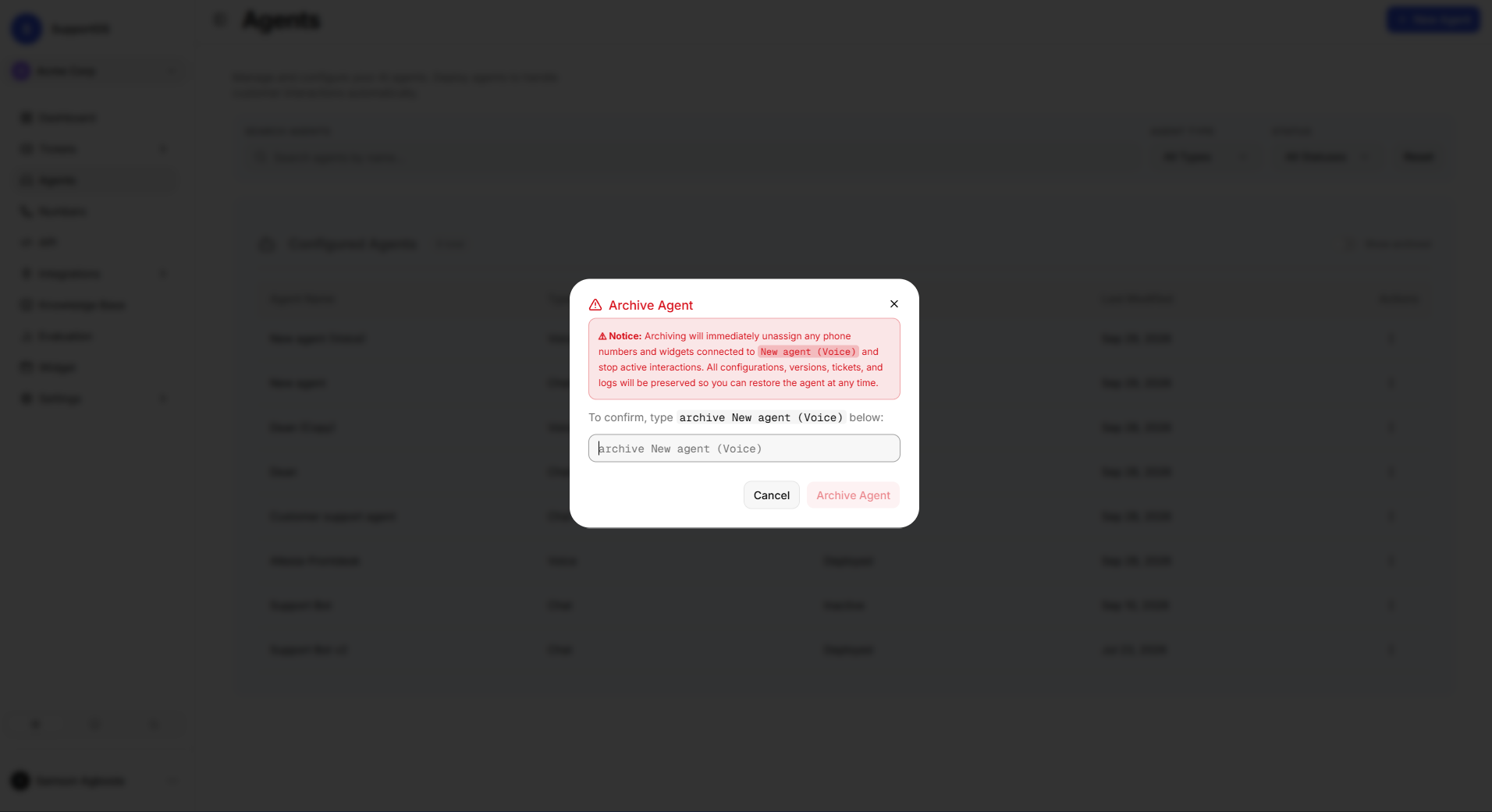 Archive confirmation modal with safety notice and type-to-confirm input.
Before archiving an agent, ensure no critical unresolved tickets or ongoing customer escalations are awaiting an immediate callback or follow-up from that specific agent.
Restoring an Archived Agent
You can unarchive a retired agent at any time without losing any of its previous rules, knowledge attachments, or version history:
- Navigate to Agents in the left sidebar.
- In the table header, toggle the Show archived switch to ON (or filter by Status:
Archived). - Locate the archived agent in the table, click the Three Dots (...) menu, and select Unarchive.
- The agent is immediately restored to Active status in your workspace.
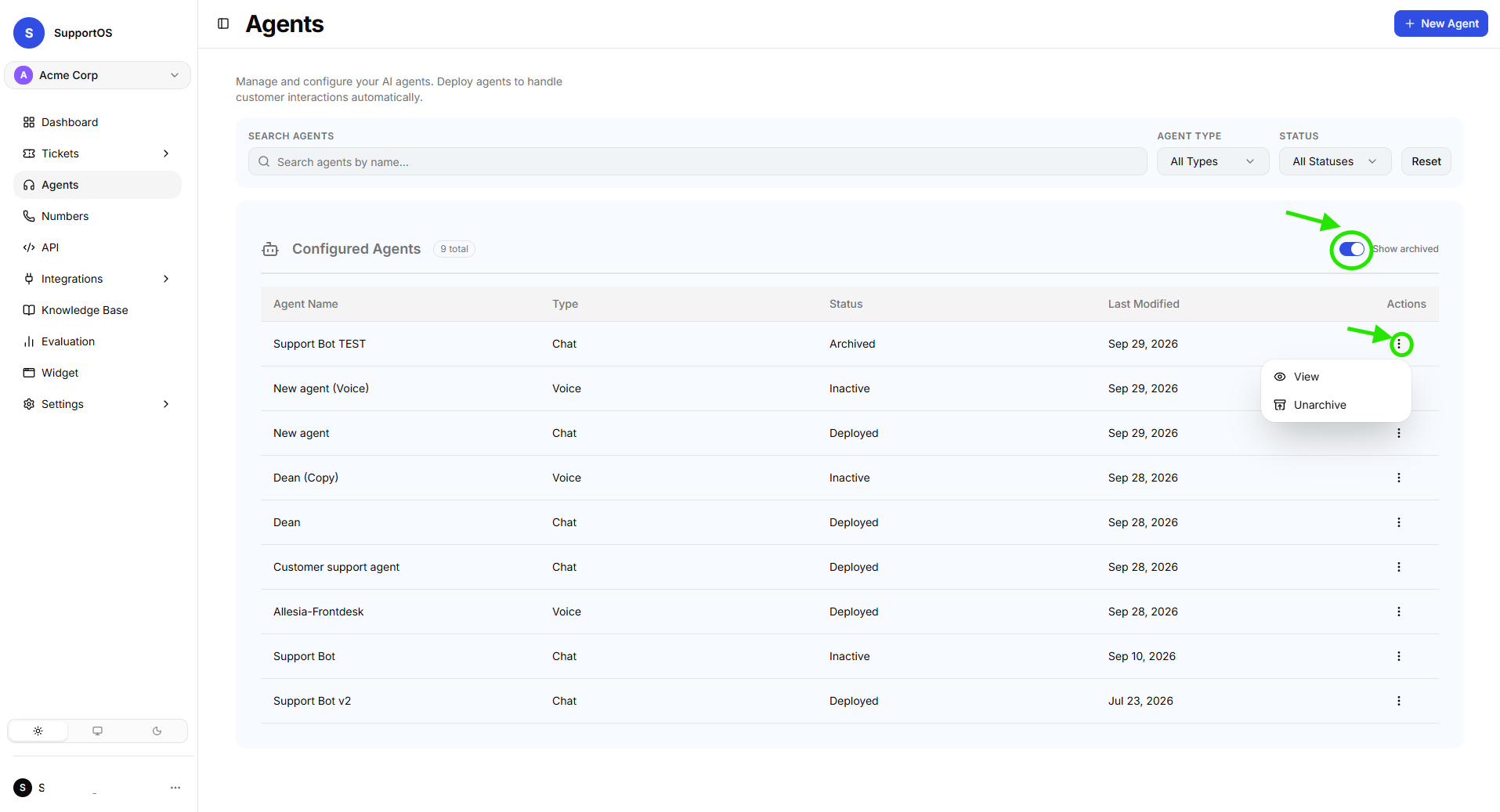 Configured agents table with the Show archived switch active and Unarchive action in the row menu.
Post-Restoration Checklist
Once an agent is restored, it does not automatically capture live customer traffic until you re-link your channels:
- For Voice Agents: Open the agent view, open Versions, and click Go Live on your desired version to re-provision the voice assistant on telephony infrastructure.
- Reassign Phone Numbers: Navigate to Phone Numbers and assign your desired incoming phone numbers back to the agent.
- Rebind Chat Channels & Widgets: Navigate to Integrations or Widgets to route incoming chat traffic back to the agent.
- Run a Pre-Flight Test: Click Test in the agent header to open the simulator and verify that knowledge base attachments and API tools are still active and responding as expected.
Next Steps
- Knowledge Bases Overview — Upload documents, configure indexing pipelines, and connect business knowledge to your agents.
- Phone Numbers & Telephony — Manage phone number inventory and assign active voice agents to phone lines.