Overview
In One Sentence
An Agent is the virtual support representative configured for your organization — defining how it speaks, what policies it adheres to, and which playbooks, knowledge libraries, and tools it can use.
Why It Exists
Customers do not interact with a generic platform; they interact with a dedicated agent on a specific channel (such as your website widget, messaging apps, or telephone lines). The Agent Builder is the central workspace where your team designs, configures, and tests that experience before making it live to customers.
What Lives on an Agent
An agent is a structured collection of capabilities and rules rather than a single prompt:
| Section | What You Configure | Deep Dive |
|---|---|---|
| Brand & Configuration | Core prompt, agent identity name, conversational tone, safety rules, and call settings | Configure Agents |
| Scenarios (Playbooks) | Guided workflows, customer intent handling, and step-by-step response logic | Scenarios & Routing |
| Knowledge Bases | Searchable document libraries, FAQs, and company policies attached to the agent | Knowledge Bases |
| Actions & Tools | Live business data lookups (e.g. order tracking or account balance lookups) | API Tools |
| Testing | Interactive preview chat and simulated voice call drawer to test drafts before publishing | Testing Agents |
| Versions & Releases | Historical snapshot versions, publishing drafts, and live deployment management | Versioning & Deployment |
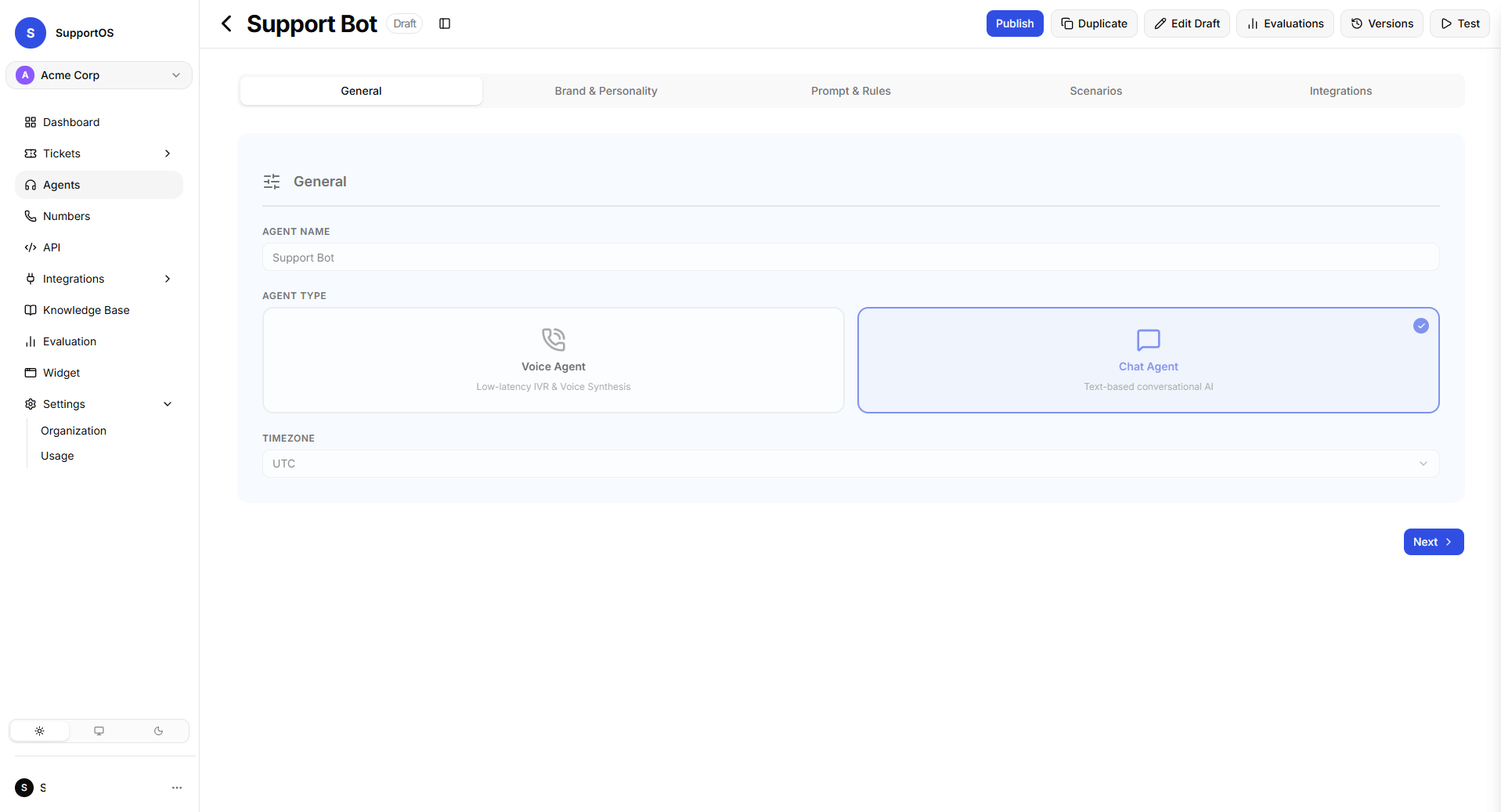 The SupportOS Agent Builder workspace showing configuration tabs, editor canvas, and simulator controls in chat mode.
Agent Types: Chat vs. Voice
When creating an agent, you choose its primary communication type:
| Type | Best For | Supported Channels |
|---|---|---|
| Chat | Text-based messaging and self-service support | Web Chat Widget, Freshchat (WhatsApp, Instagram, Web) |
| Voice | Inbound and outbound phone assistance | Dedicated phone numbers (telephony) |
You can change an agent's type later in settings. Switching between Chat and Voice will update the available channel options and require configuring voice identity settings for phone calls.
The Core Lifecycle: Draft → Publish → Deploy
SupportOS separates your working edits from live customer interactions so you can make updates safely without disrupting active conversations.
| Lifecycle Stage | Customer Visibility | What It Does |
|---|---|---|
| Draft (Working Edits) | None | Your private workspace in the builder. Saving changes here does not affect live customers. |
| Publish (Version Snapshot) | None | Freezes your current draft into a permanent, numbered version (e.g., v1, v2) with author release notes. |
| Deploy (Go Live) | Active on Channels | Activates a specific published version to begin answering real customer inquiries immediately. |
Agent Status Indicators
- Inactive: The agent is newly created or offline; no version is currently handling live traffic.
- Deployed: A specific version of the agent is live and actively answering customer conversations.
- Archived: The agent is safely retired. Archived agents cannot be deployed or assigned to phone numbers, but all historical conversations and versions remain preserved.
Recommended Step-by-Step Builder Flow
- View Agent List: See all company agents, their communication types (
ChatorVoice), and their current live deployment status. - Create New Agent: Choose a descriptive name and select whether it is a Chat or Voice agent.
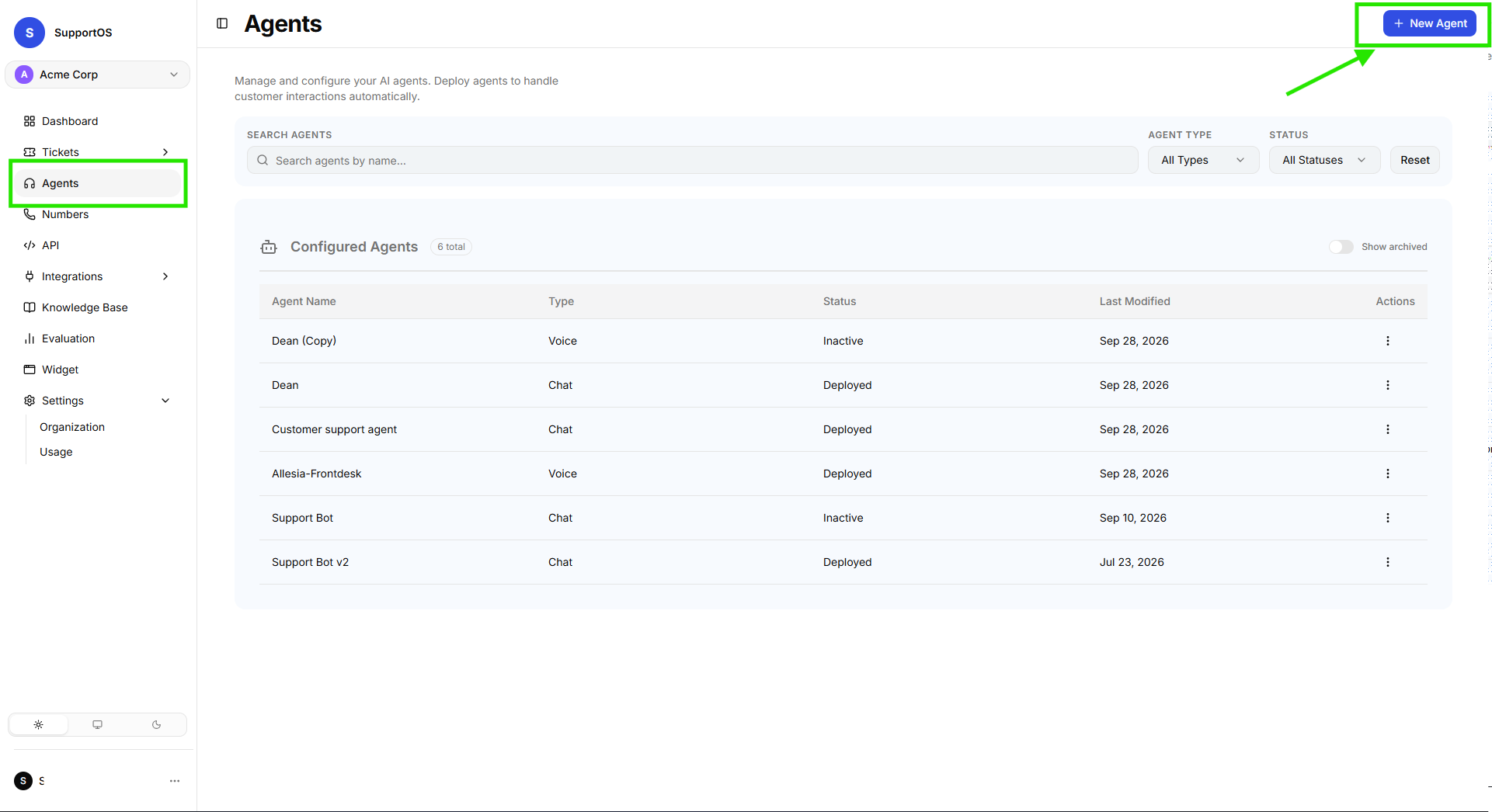 The Agents dashboard showing active agents, statuses, and the Create Agent action. 3. Configure the Draft: Write your brand instructions, define compliance rules, add scenario playbooks, and attach knowledge documents or tools. 4. Test in the Simulator: Use the in-app chat or call preview drawer to test your draft agent before publishing. 5. Publish a Version: Review your changes, add a version note (e.g., "Updated return policy playbook"), and save the snapshot. 6. Deploy Live: Click Deploy to push the version live to your website widgets and phone numbers. 7. Iterate or Roll Back: Make further edits in the draft anytime, or instantly roll back by re-deploying an earlier version from your history.
Team Roles & Permissions
| Role | What They Can Do |
|---|---|
Administrator (admin, super_admin) | Full access to create, edit drafts, attach resources, publish versions, deploy live, and archive agents. |
Read-Only (read_only) | Can view agent configurations, inspect version history, and test in the simulator, but cannot edit or deploy. |
Next Steps
Explore Agent Types (Chat vs. Voice) to learn more about specific settings and capabilities for text and voice assistants.