Testing agents
In One Sentence
The Simulator is an interactive in-app preview drawer that lets you test your agent's live conversations, scenario routing, and tool lookups before deploying changes to real customers.
Why It Exists
Making changes directly to live customer channels is risky. The simulator provides a private sandbox where you can chat with or call your agent, verify that it follows brand guidelines and safety rules, and inspect how it resolves inquiries without creating messy test tickets in your live support inbox.
The 3 Testing Modes
The simulator lets you test your agent against different configurations:
| Testing Mode | What It Tests | Best For |
|---|---|---|
| Draft Test | Your current, unsaved or unpublished working edits | Rapidly testing prompt tweaks, new rules, or playbook changes. |
| Version Test | A specific historical snapshot from your version history | Verifying older behavior or diagnosing regressions. |
| Live Deployment Test | The exact active version handling real customer traffic | Confirming what customers currently experience on live channels. |
Testing in the simulator operates in an isolated test environment. Any conversations conducted inside the simulator will not affect your live customer analytics or clutter your team's support ticket queue.
How to Open the Test Sandbox
To launch interactive testing from the Agent View page:
- Navigate to Agents and click on your target agent.
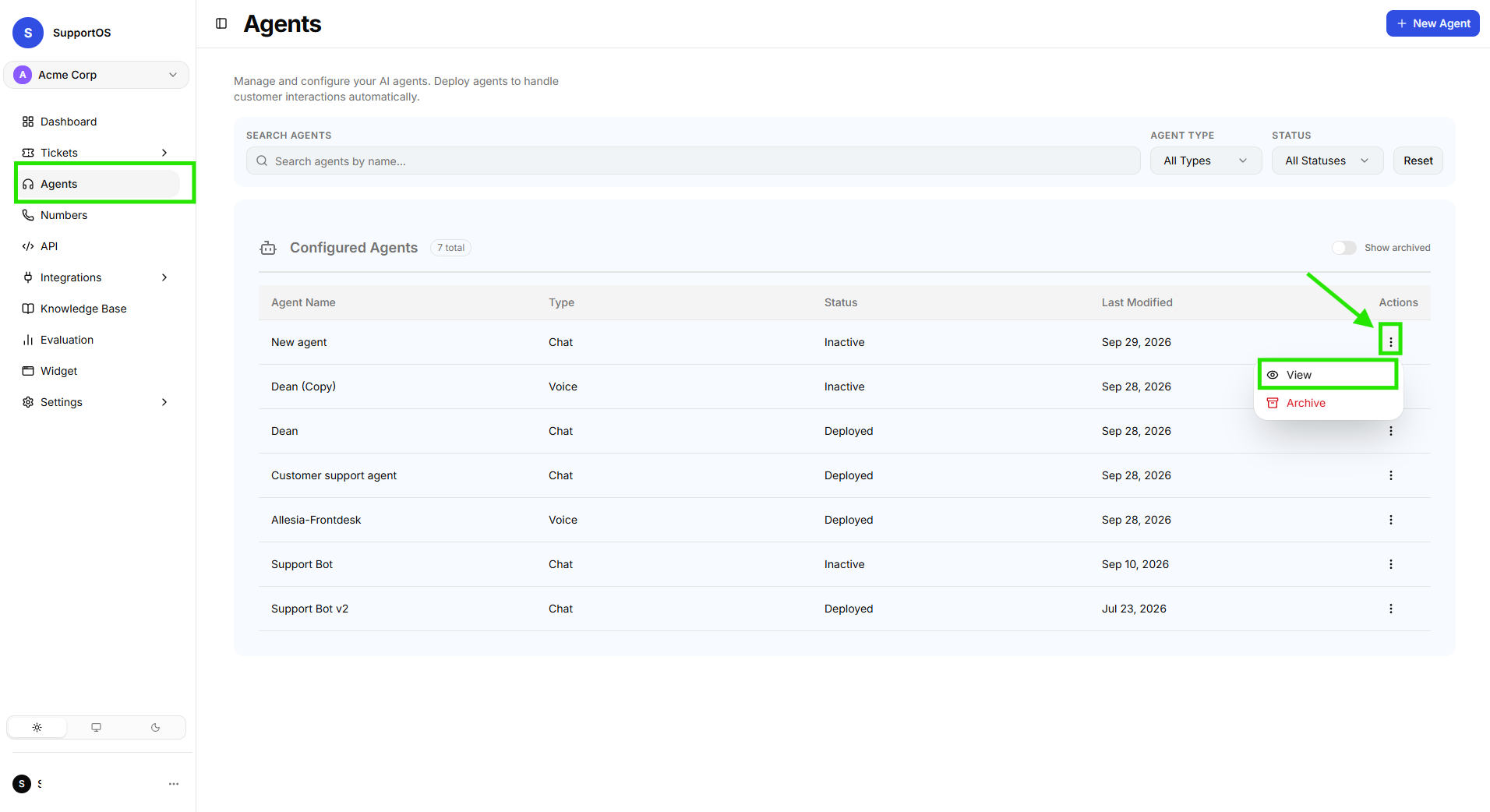 Agents list table showing agent selection.
- In the top-right header action bar, click the Test button (with the Play icon).
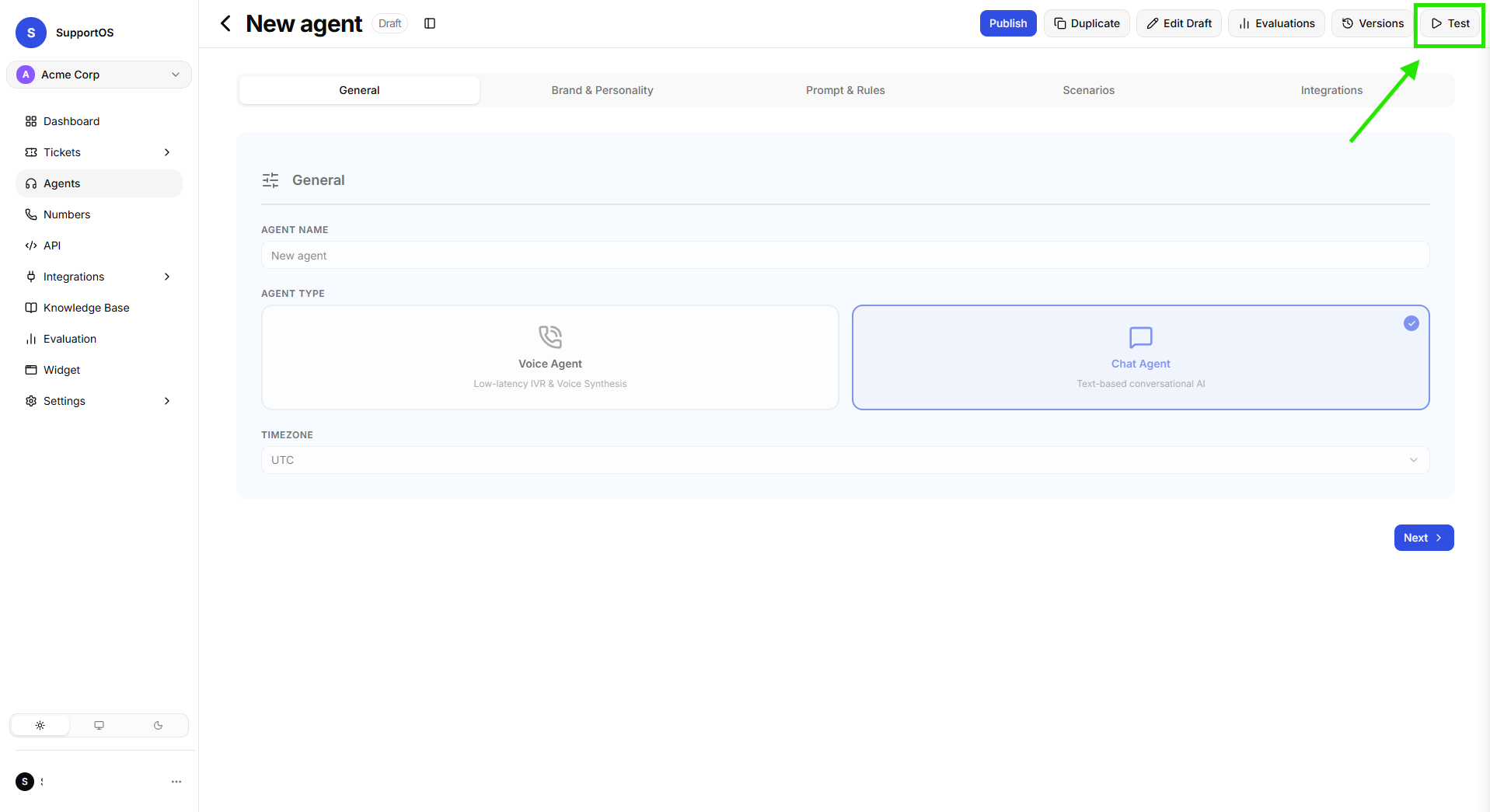 Agent View header action bar highlighting the Test button.
- The Test Agent Drawer slides open from the right side of the screen with an active test session ID.
- If you are viewing a specific historical snapshot (or the live deployment), the test session will automatically run against that version's frozen configuration.
Testing Chat Agents
For text-based Chat Agents, the test drawer opens an interactive chat sandbox that mirrors the customer widget experience:
- Conversational Messaging: Type messages in the bottom textarea and press Enter (or click Send) to interact in real time.
- Scenario Playbook Routing: Send test customer requests to verify that intent matching triggers the expected playbook responses.
- Knowledge Base Retrieval: Ask policy and factual questions to verify that the agent retrieves accurate answers from attached knowledge documents.
- Download Transcript: Click Download Transcript in the top header to export the entire test conversation history as a JSON file for quality review.
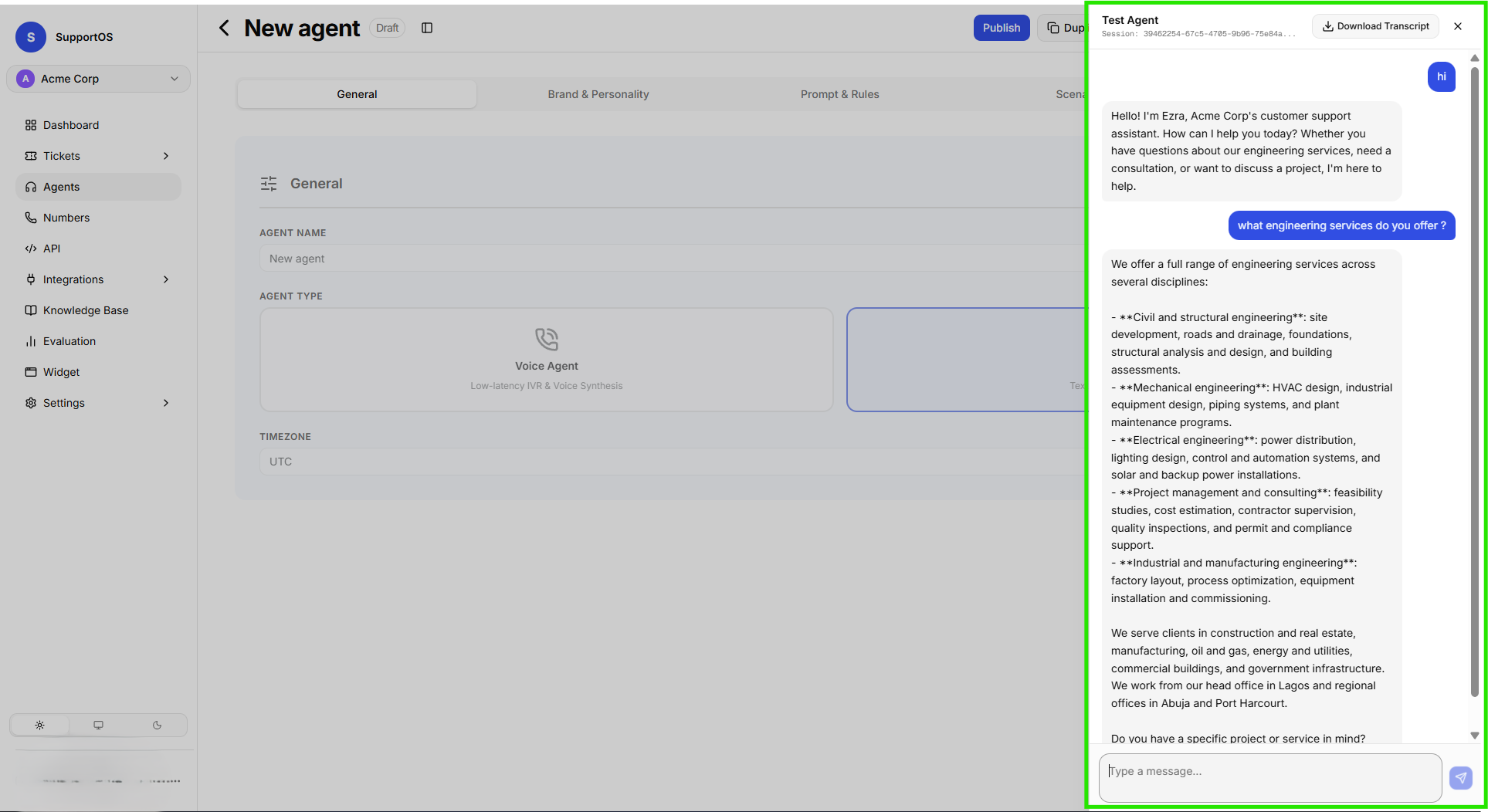 Interactive chat test drawer showing live message bubbles, input textarea, and transcript download action.
Testing Voice Agents
For telephony-enabled Voice Agents, the test drawer provides a real-time voice call simulator powered by live WebRTC audio:
1. Call View & Audio Controls
- Start Call: Click the Start call button (with the phone icon) to initiate a live voice connection using your microphone and speakers.
- Connection States: The top status indicator displays live connection status:
Connecting...$\rightarrow$Connected$\rightarrow$Ending call.... - Live Call Timer: Once connected, the timer displays real-time Call Duration (e.g.
00:45). - Visualizer & Speaking Indicators: The center avatar animates with pulse rings and bouncing audio equalizer bars, indicating when the agent is
Listening to you...(Mic) or when{Agent Name} is speaking...(Volume). - End Call: Click the red End call button to disconnect the session.
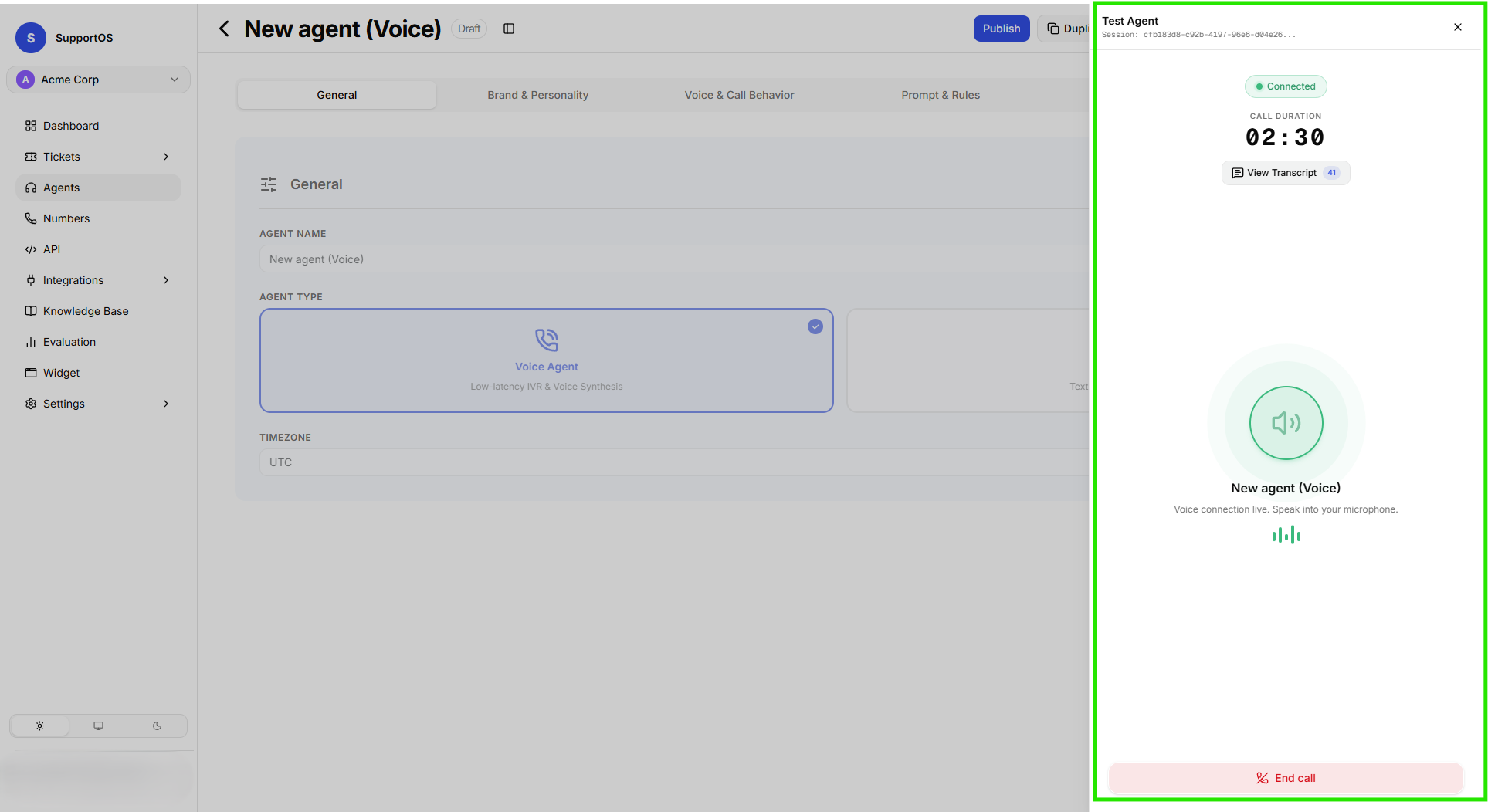 Voice call test drawer showing live connection status, duration timer, center audio visualizer, and End Call action.
2. Live Transcript & Export
- View Transcript: Toggle between Call View and View Transcript during or after a call to read real-time speech-to-text transcriptions with speaker labels (
YouvsAgent). - Download Transcript: Export the full voice session transcript as JSON once the call completes.
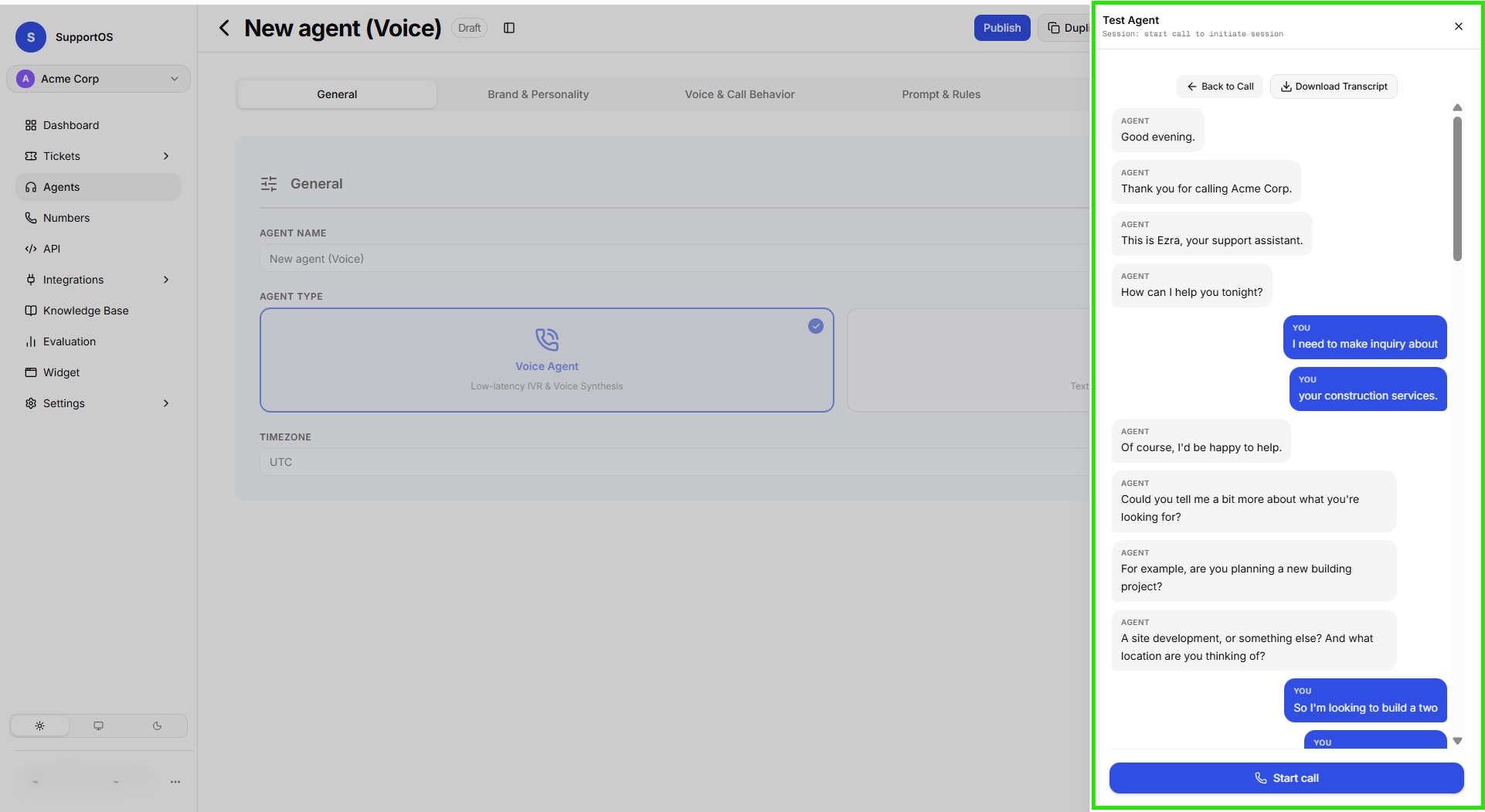 Voice test transcript view showing real-time transcribed dialogue and the Download Transcript button.
To test a voice agent in the call simulator, ensure a voice profile has been selected in your agent's configuration.
What to Check Before Deploying
Before publishing and deploying your agent to live channels, run through this pre-flight checklist:
- Greeting & Identity: Confirm the agent introduces itself with the correct name and brand tone.
- Rules & Compliance: Try asking out-of-scope or restricted questions to ensure rules hold.
- Intent Routing: Test varying customer phrasing to make sure the expected scenario activates.
- Tool & Action Accuracy: Verify that tool parameters and responses return expected values.
- Handoff Logic: Trigger an escalation to ensure human transfer instructions are clear.
Next Steps
Once your tests pass in the simulator, learn how to publish your snapshot in Versioning & Deployment.