Versioning & Deployment
In One Sentence
Versioning allows your team to freeze configuration snapshots (Publish), activate a specific version on live customer channels (Go Live), and restore past versions to your working editor (Replace & Edit) without risking downtime.
Why It Exists
Making changes directly to active agents can disrupt customer conversations. SupportOS cleanly separates your private working draft from permanent version snapshots and active customer-facing deployments.
The Three Configuration Layers
SupportOS manages agent configuration across three distinct layers:
| Layer | Editable? | Visibility | Purpose |
|---|---|---|---|
| Draft | Yes (Mutable) | Workspace Builders | Your private working draft in the editor. Changes made here do not affect live customers. |
| Version Snapshot | No (Immutable) | Versions Drawer | A permanent, numbered release (e.g., v1, v2, v3) capturing the full configuration. |
| Live Deployment | Active on Channels | Live Customers | The exact version snapshot currently handling incoming website chats and phone calls. |
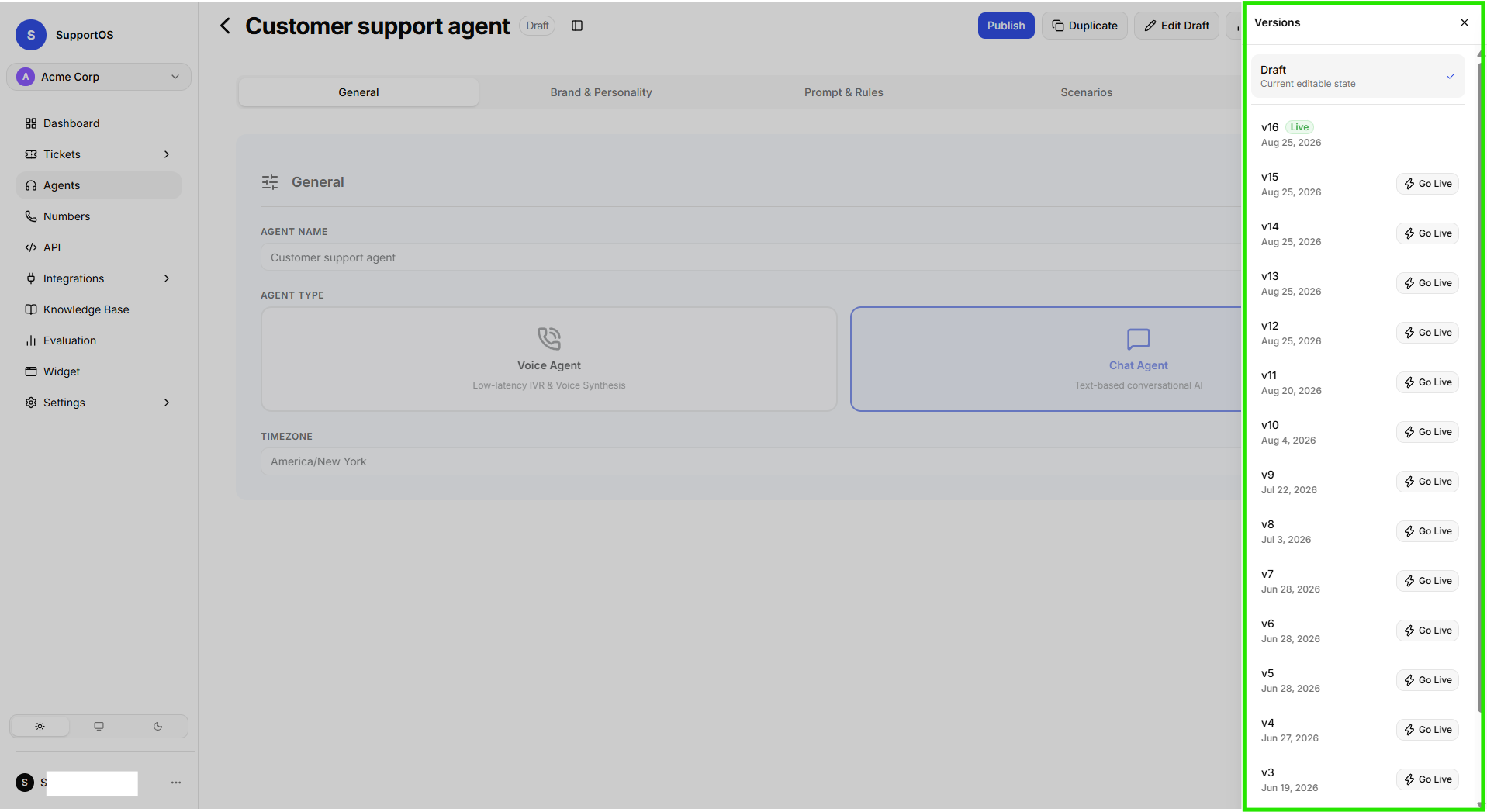 The Versions drawer showing the working Draft, published version snapshots with Live status, and Go Live controls.
The Versioning Lifecycle
1. Publish (Freeze a Snapshot)
When you finish updating and testing changes in the simulator:
- Click the Publish button in the agent header.
- The current draft configuration is immediately saved as the next immutable version snapshot (e.g.,
v1,v2). - The newly published version appears in the Versions drawer, ready for deployment.
Publishing creates a version snapshot in your history. It does not alter live customer traffic until you explicitly deploy it.
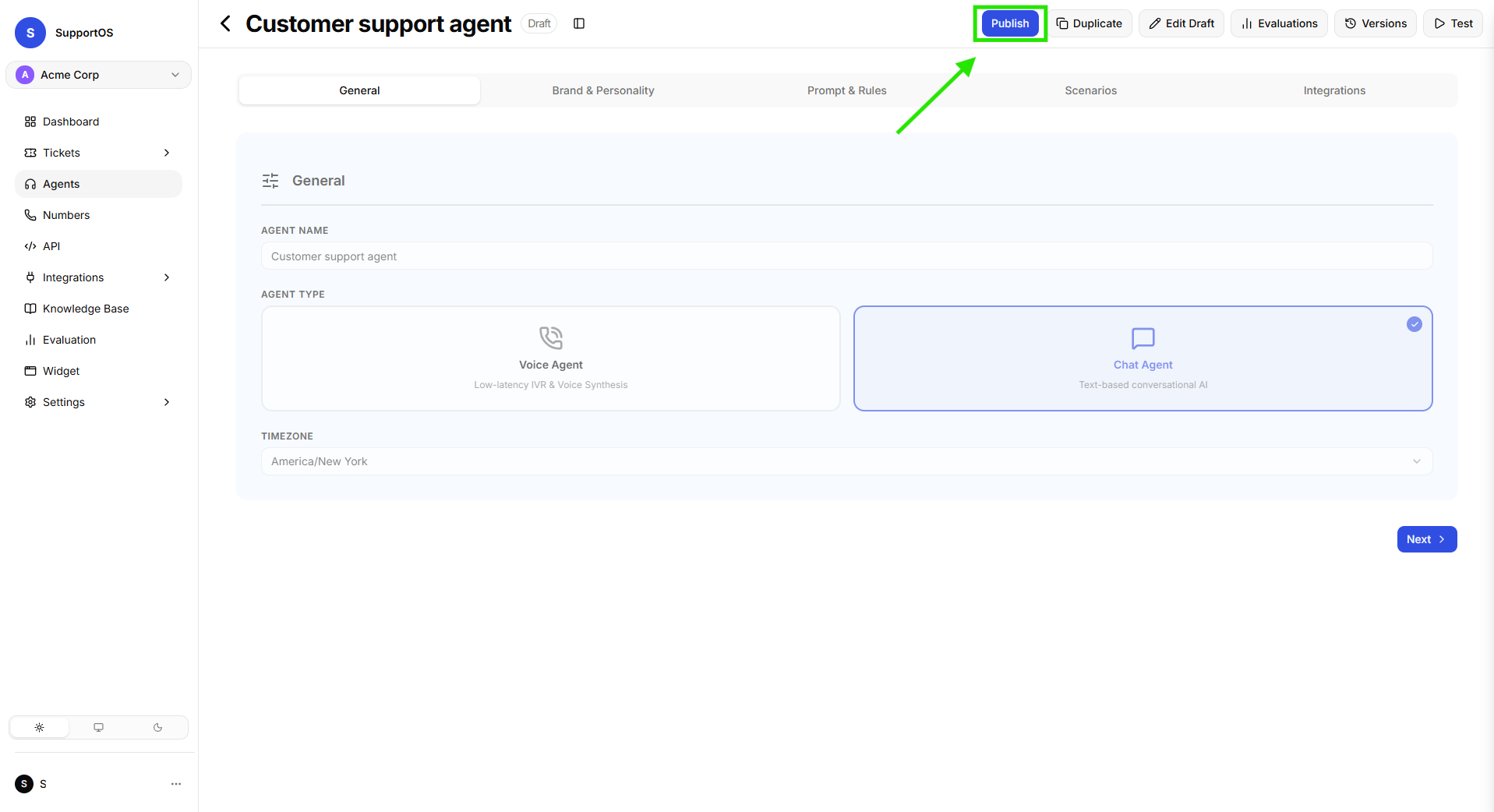 Agent header displaying the Publish, Duplicate, Edit Draft, Evaluations, and Versions actions.
2. Deploy (Go Live)
To make a published version active for live customer interactions:
- Click the Versions button in the agent header to open the version history drawer.
- Locate the desired version snapshot (e.g.,
v2). - Click Go Live next to that version.
- The version receives a green Live badge, and all attached channels (website widgets, chat integrations, and assigned phone numbers) immediately route customer traffic to this version.
- Publish: Freezes your current draft into history as a numbered version.
- Go Live: Activates that specific version to serve real customer traffic.
3. Rollback (Instant Reversion)
If you need to quickly revert a live deployment to a previously verified stable version:
- Click Versions in the agent header.
- Find the earlier stable version (e.g.,
v1). - Click Go Live on that version.
- Live traffic instantly switches back to the earlier version with zero downtime.
4. Restore and Edit (Replace Draft)
If you want to use an earlier version snapshot as the base for new modifications:
- Open the Versions drawer and click on the desired version (e.g.,
v1). - The view switches to the read-only snapshot tagged with
v1. - Click Edit in the top header.
- A confirmation dialog appears: "Replace draft with v1?".
- Click Replace & Edit to overwrite your working draft with this version's configuration and open the builder for editing.
Replacing your draft overwrites any uncommitted draft edits. If you have draft changes you wish to keep, be sure to click Publish before restoring an older version.
Next Steps
Learn how to soft-retire agents in Archiving Agents.