Spend, Usage & Billing
In One Sentence
The Usage & Billing dashboard located under Settings > Usage provides complete visibility into your organization's AI consumption, itemized spend across chat and voice sessions, invoice histories, and payment settlement.
Why It Exists
Support operations require clear, predictable cost accounting. SupportOS tracks telemetry at the granular session level — measuring exact voice telephony minutes, LLM token counts, and active phone number line rentals — so finance and support managers can audit spend, forecast budgets, and download itemized monthly tax invoices directly from the dashboard.
Usage Metering Architecture
Every time a live customer conversation concludes, SupportOS records a billable telemetry event:
Dashboard Tabs & Capabilities
Access the usage and billing management center by navigating to Settings > Usage (/settings/usage) in the left sidebar. The interface is organized into three primary tabs:
| Tab | What You Manage | Key Actions & Filters |
|---|---|---|
| Usage & Analytics | Period spend, session counts, billable sessions, average duration, and itemized logs | Filter by date range (Today, Yesterday, Last 7 Days, Last 30 Days, This Month, Last Month), Channel (Voice vs Chat), Billable status, and Session Mode |
| Invoices | Itemized invoice records, payment statuses, and tax receipts | Filter by status (Draft, Open, Paid, Uncollectible, Void), view line items, download PDF, or launch payment checkout |
| Payment History | Settled transaction history and payment method records | Review payment timestamps, transaction amounts, currency, and settlement confirmations |
Conversations conducted in the In-App Simulator are flagged with session_mode: test and are 100% free of charge. Your usage quota is only consumed by real customer sessions on live channels and phone lines.
1. Usage & Session Telemetry
The Usage & Analytics tab gives you a complete operational breakdown of your platform consumption:
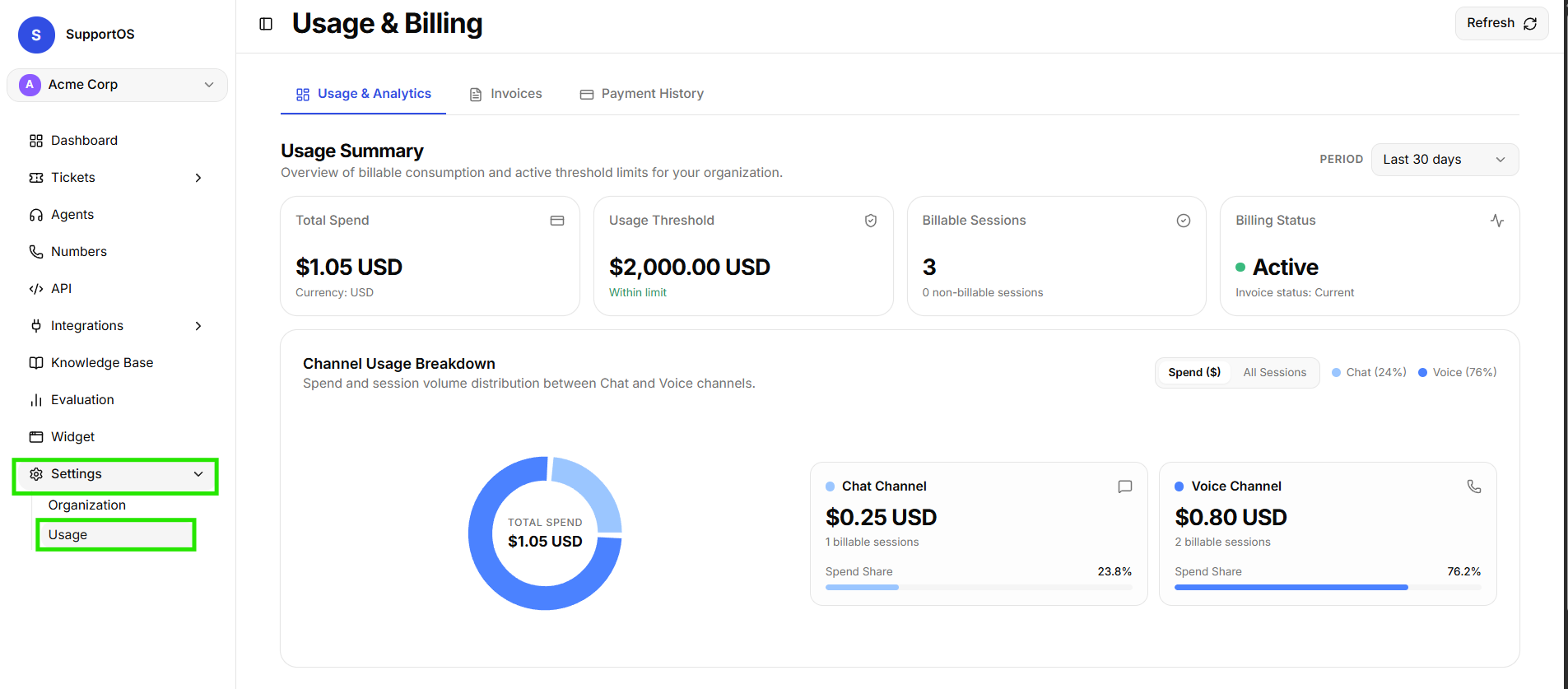 Summary KPI cards displaying total period spend, billable events, voice telephony duration, and average cost per session with date range filter.
- Summary Cards: Displays Total Spend, Billable Events, Voice Telephony Duration, Chat Message Volume, and Average Cost per Session.
- Date Range Selector: Filter metrics across
Today,Yesterday,Last 7 Days,Last 30 Days,This Month, andLast Month.
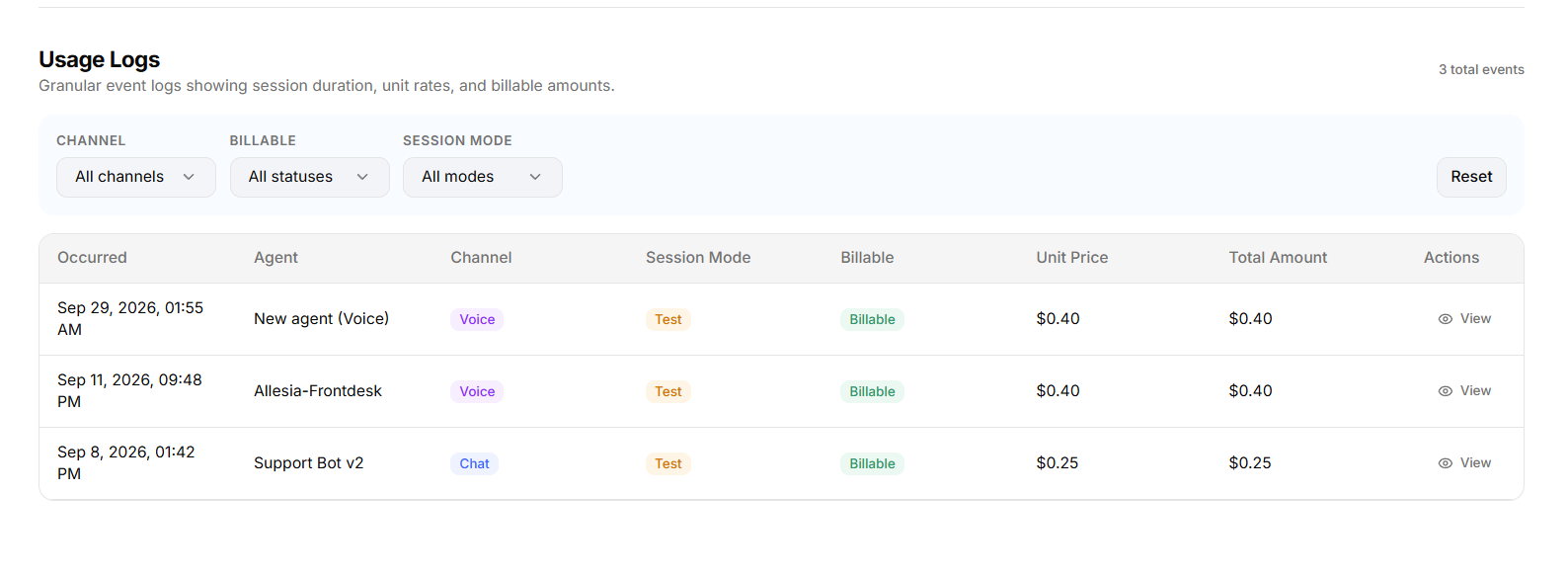 Itemized usage logs table displaying session timestamps, agent names, channels, billable indicators, unit prices, and total session costs.
- Usage Logs Table: Columns for Occurred, Agent, Channel, Session Mode, Billable, Unit Price, and Total Amount.
- Usage Detail Modal: Click any session row to inspect exact duration, channel details, and pricing breakdowns.
2. Invoices & Status Lifecycle
The Invoices tab manages all billing statements issued to your organization:
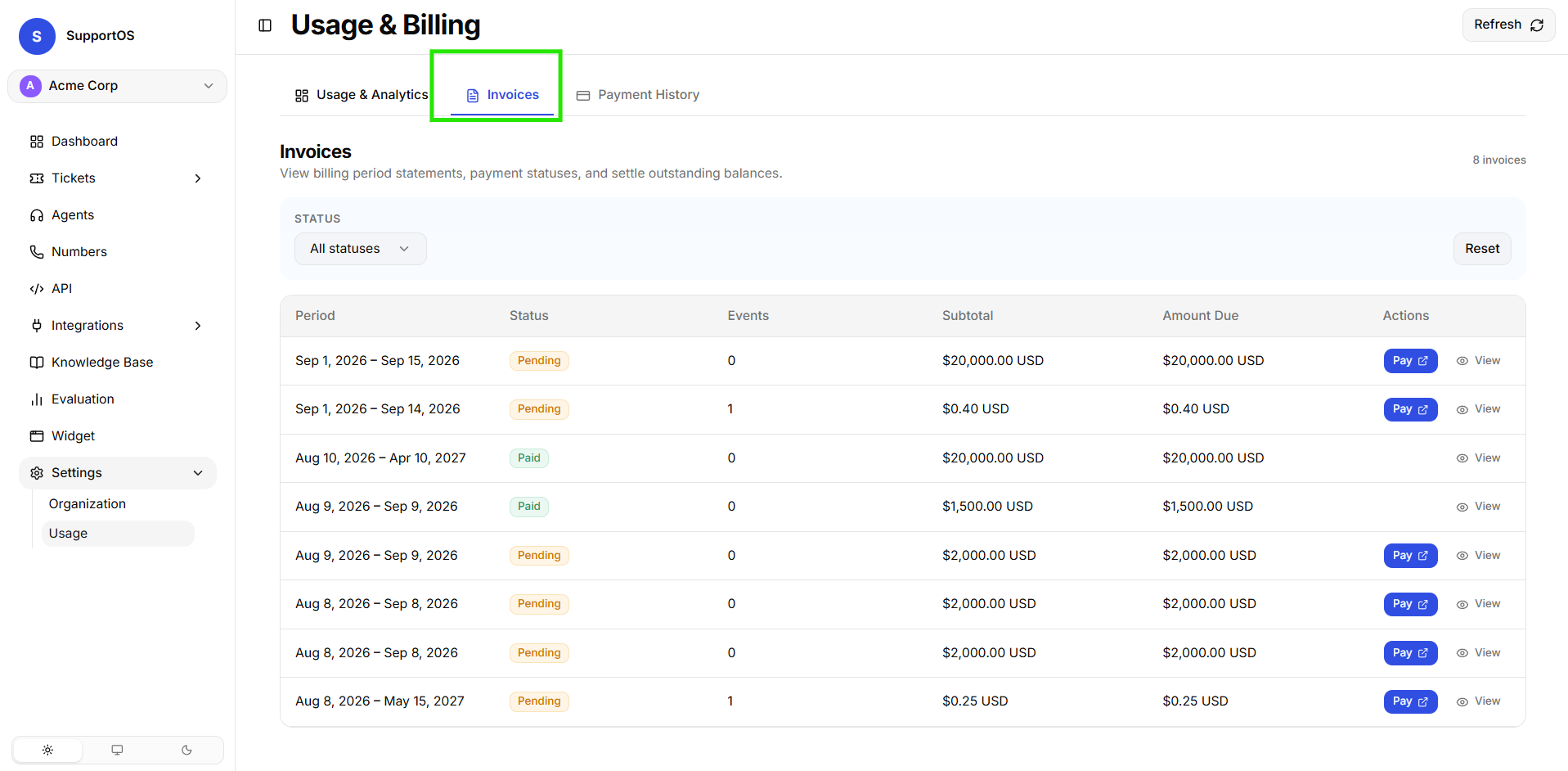 Invoices tab displaying billing period, status indicators, event counts, subtotal, and amount due.
| Status | Meaning | Available Actions |
|---|---|---|
| Draft | Invoice generated internally; awaiting issuance | View details |
| Open | Invoice issued and awaiting payment | Pay Invoice (hosted checkout) or Download PDF |
| Paid | Payment successfully processed and settled | Download PDF Receipt |
| Uncollectible | Payment attempt failed or collection exhausted | View details |
| Void | Invoice cancelled or replaced | View-only archive |
Reviewing & Paying an Invoice
- Navigate to Settings > Usage and select the Invoices tab.
- Locate the invoice row and click View Invoice.
- In the modal, review line items for voice telephony minutes, chat sessions, and phone number rentals.
- Click Pay Invoice to complete payment via secure hosted checkout.
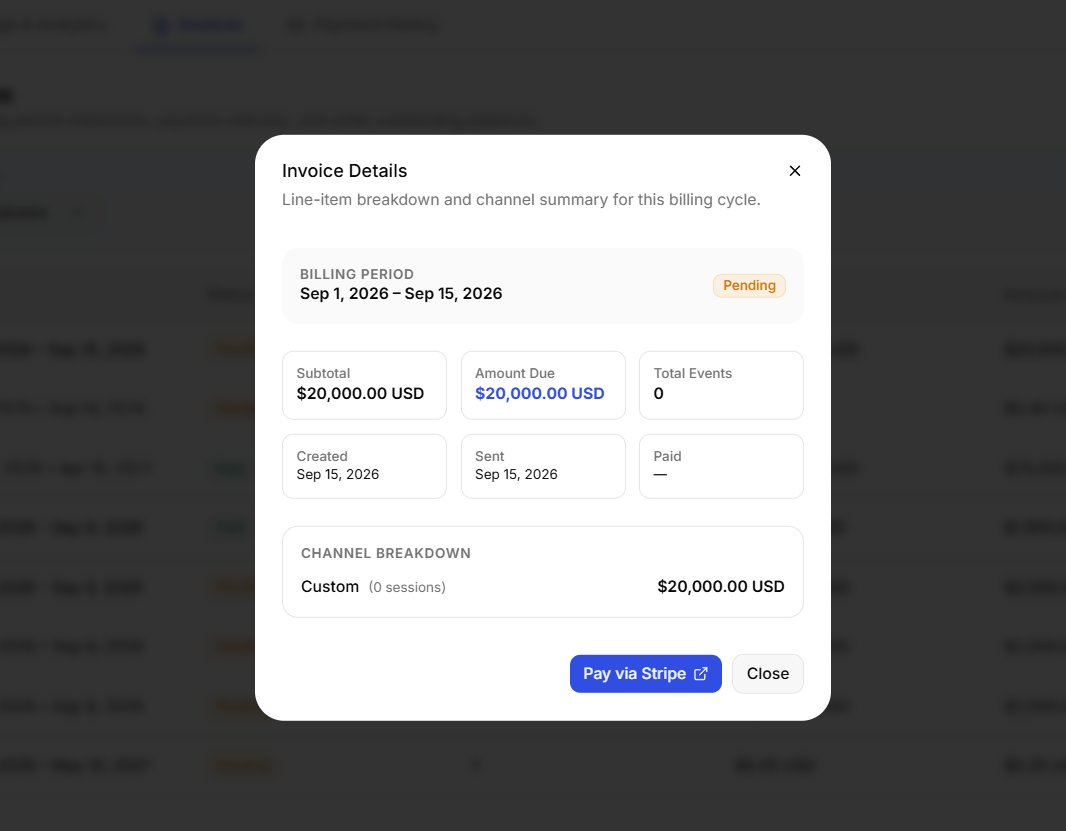 Invoice detail modal displaying line item breakdown, tax subtotal, amount due, and payment settlement actions.
3. Payment History & Audit Records
The Payment History tab provides an auditable ledger of all settled transactions:
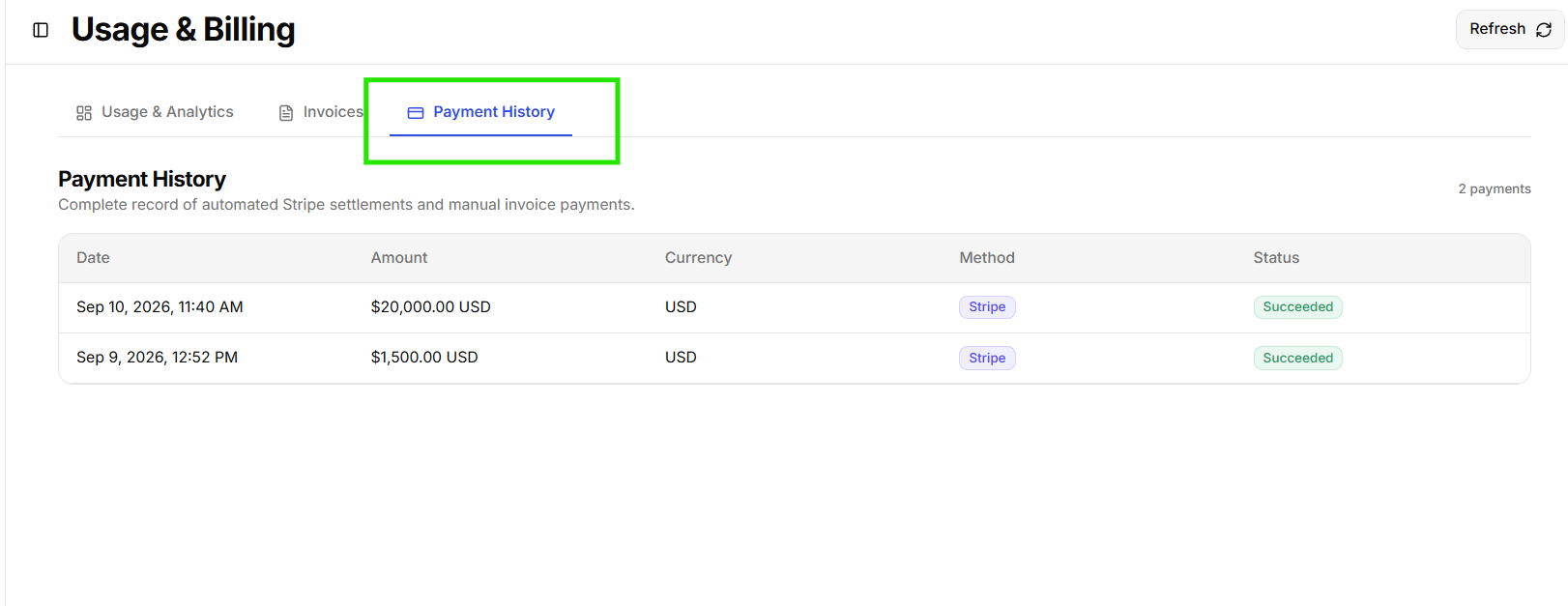 Payment History tab displaying payment date, amount paid, currency, payment method, and settlement status.
- Columns: Date, Amount, Currency, Method, and Status.
- Audit Verification: Instant confirmation of settled card and wire payments with automated receipt links.
Next Steps
- AI Agents Overview — Return to the AI Agents guide to optimize agent prompts, rules, and token efficiency.
- Phone Numbers & Telephony — Manage active telephone numbers and release unused carrier lines to reduce monthly line fees.