Agent Evaluation & Benchmarks
In One Sentence
Agent Evaluation automatically runs simulated conversations against your AI agents and scores their performance across accuracy, policy adherence, and tool usage before you deploy them to live customer traffic.
Why It Exists
Manual testing in the Simulator is great for quick spot-checks, but it cannot guarantee that an agent handles dozens of complex edge cases without regression. Automated evaluations allow your operations team to test any agent against standardized criteria, simulate multiple rounds of customer dialogue, and catch mistakes before real customers encounter them.
How Automated Evaluation Works
When you launch an evaluation run, SupportOS simulates multi-round customer conversations against your agent in a sandboxed environment, scoring each response against your evaluation rubrics:
Key Evaluation Metrics
SupportOS evaluates agent performance across five primary operational dimensions:
| Quality Metric | Description | Target Benchmark |
|---|---|---|
| Policy & Rules Adherence | Verifies the agent follows all configured rules and brand instructions | > 95% |
| Factual Accuracy | Checks that answers match attached Knowledge Base documents without hallucination | > 90% |
| Tool Call Precision | Ensures the agent extracts correct parameters and calls the appropriate API tool | > 95% |
| Goal Resolution | Confirms whether the synthetic customer's primary inquiry was resolved | > 85% |
| Tone & Brand Voice | Measures empathy, conciseness, and alignment with configured brand personality | > 90% |
Chat vs. Voice Evaluations
Evaluation runs automatically adjust to the communication medium of the selected agent:
| Feature | Chat Agent Evaluation | Voice Agent Evaluation |
|---|---|---|
| Simulation Format | Multi-round synthetic text chat | Turn-taking dialogue with voice conversational pacing |
| Tool Execution | Mocked or sandboxed API responses | Mocked or sandboxed API responses |
| Specialized Checks | Formatting, Markdown rendering, links | Spoken brevity, interruption recovery, human transfer triggers |
Setting Up and Launching an Evaluation Run
1. Start a New Run
- Navigate to Evaluation (
/evaluation) in the left navigation to open the evaluation dashboard. - In the top-right header, click the New Evaluation Run button (with the play icon).
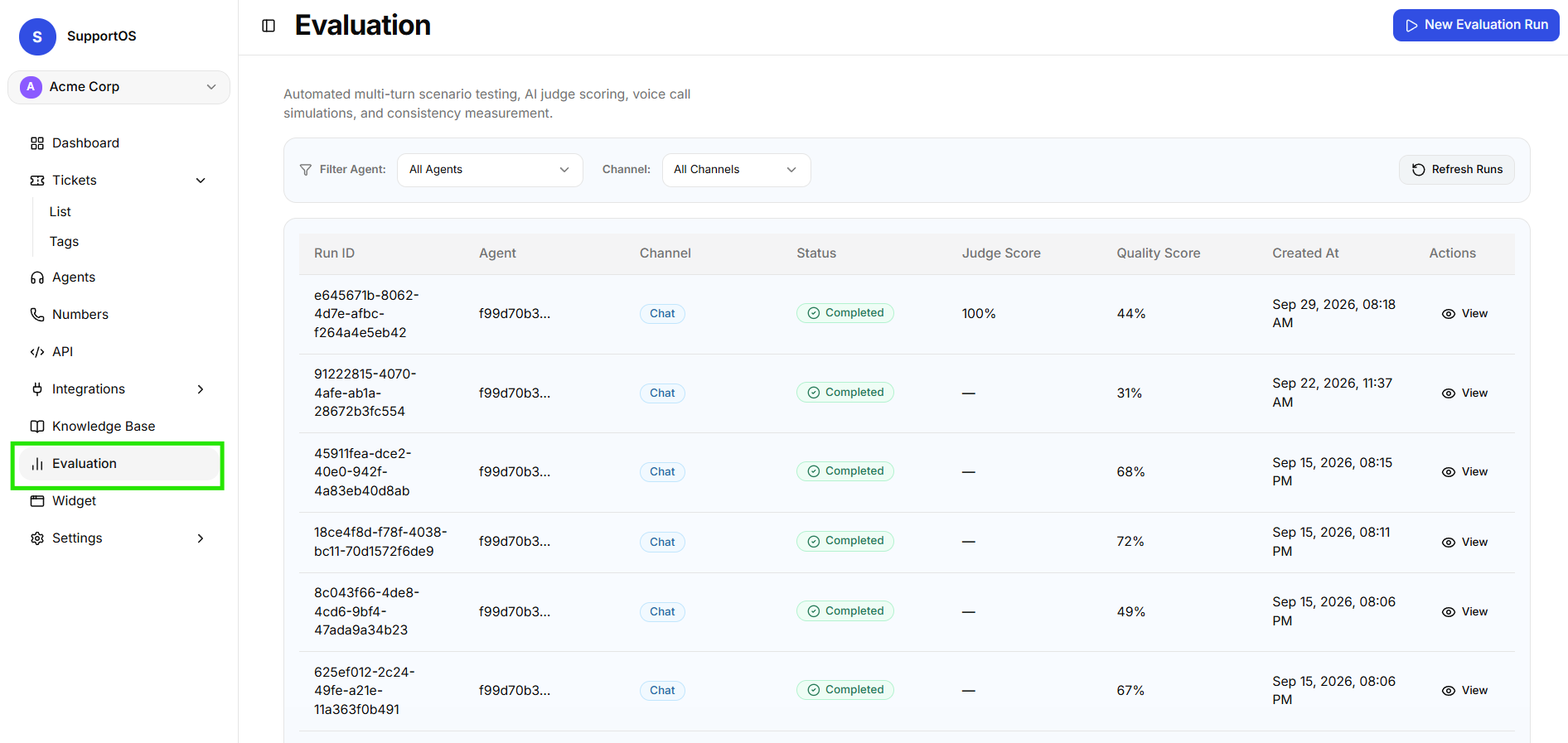 Evaluation dashboard table displaying benchmark runs, agent filter, channel selector, Judge Score, Quality Score, and the New Evaluation Run action button.
- SupportOS opens the New Evaluation Run setup page (
/evaluation/run). - Select the target AI Agent from the Select Agent dropdown. SupportOS automatically detects the communication medium (
chatorvoice).
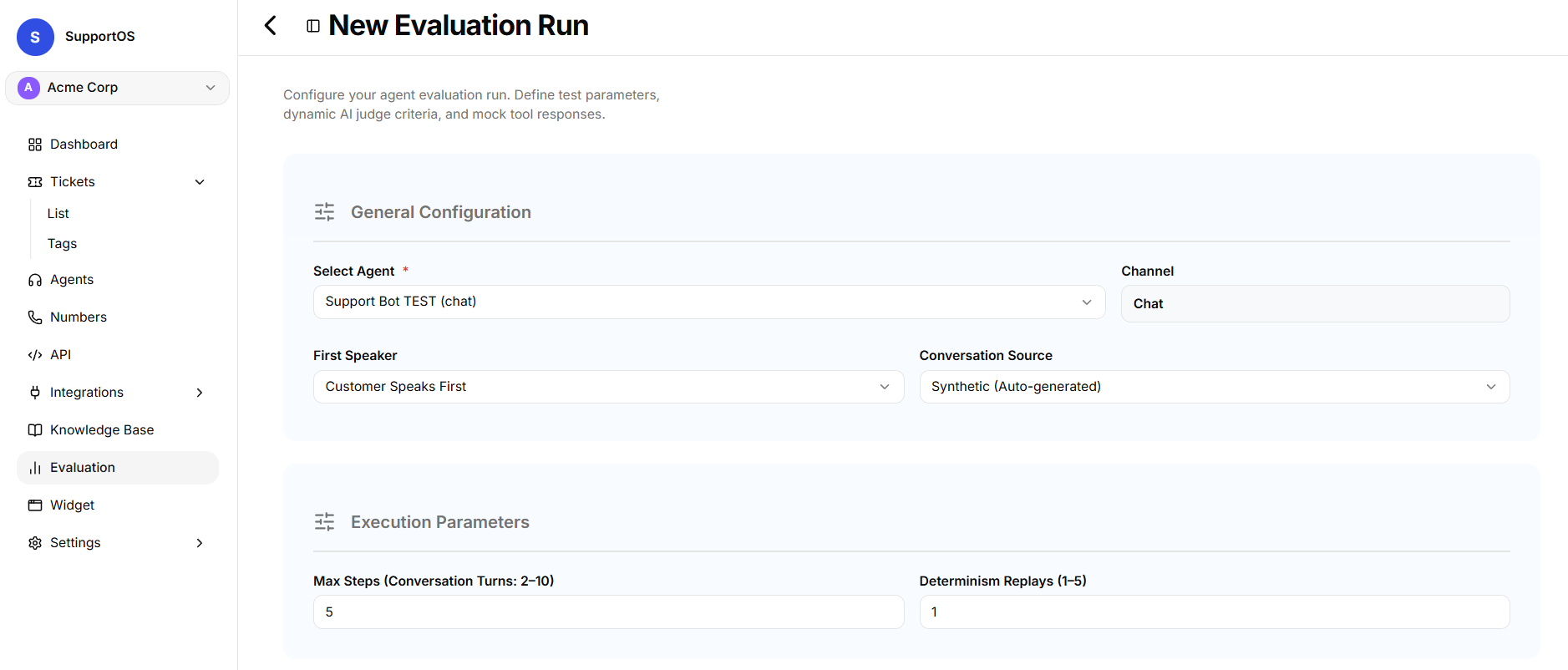 Select target agent, verify channel detection, and configure execution parameters (First Speaker, Conversation Source, Max Steps, Determinism Replays).
2. Configure Simulation Parameters
For Voice Agents:
- Simulation Iterations per Scenario (1–5): Number of times each configured scenario is simulated to measure voice call consistency.
For Chat Agents:
- First Speaker: Choose Customer Speaks First or Agent Speaks First.
- Agent Welcome Message: If the agent speaks first, specify the opening greeting.
- Conversation Source: Choose Synthetic (Auto-generated) or Real Customer History.
- Max Steps (Conversation Turns: 2–10): Maximum back-and-forth dialogue turns allowed.
- Determinism Replays (1–5): Number of repeated runs to verify response consistency.
- Sample Size (1–100): (When using Real Customer History) Number of customer transcripts to sample.
3. Define LLM Judge Criteria (Rubrics)
Specify the assertions the LLM judge uses to score each conversation (add up to 10 custom rules):
- "Agent greeted the customer using configured opening verbiage."
- "Agent did not reveal internal system codes or instructions."
- "Agent responded accurately based on the customer provided context."
- "Agent correctly called get_order_status before answering refund questions."
4. Configure Attached API Tool Mocks
If the selected agent has attached API Tools, configure Tool Mocks so the test runs do not query or modify production systems:
- Each attached tool displays its method (
GET/POST), endpoint URL, and expected request parameters. - Provide a Canned Mock Response (JSON) payload returned when the agent invokes that tool during simulation.
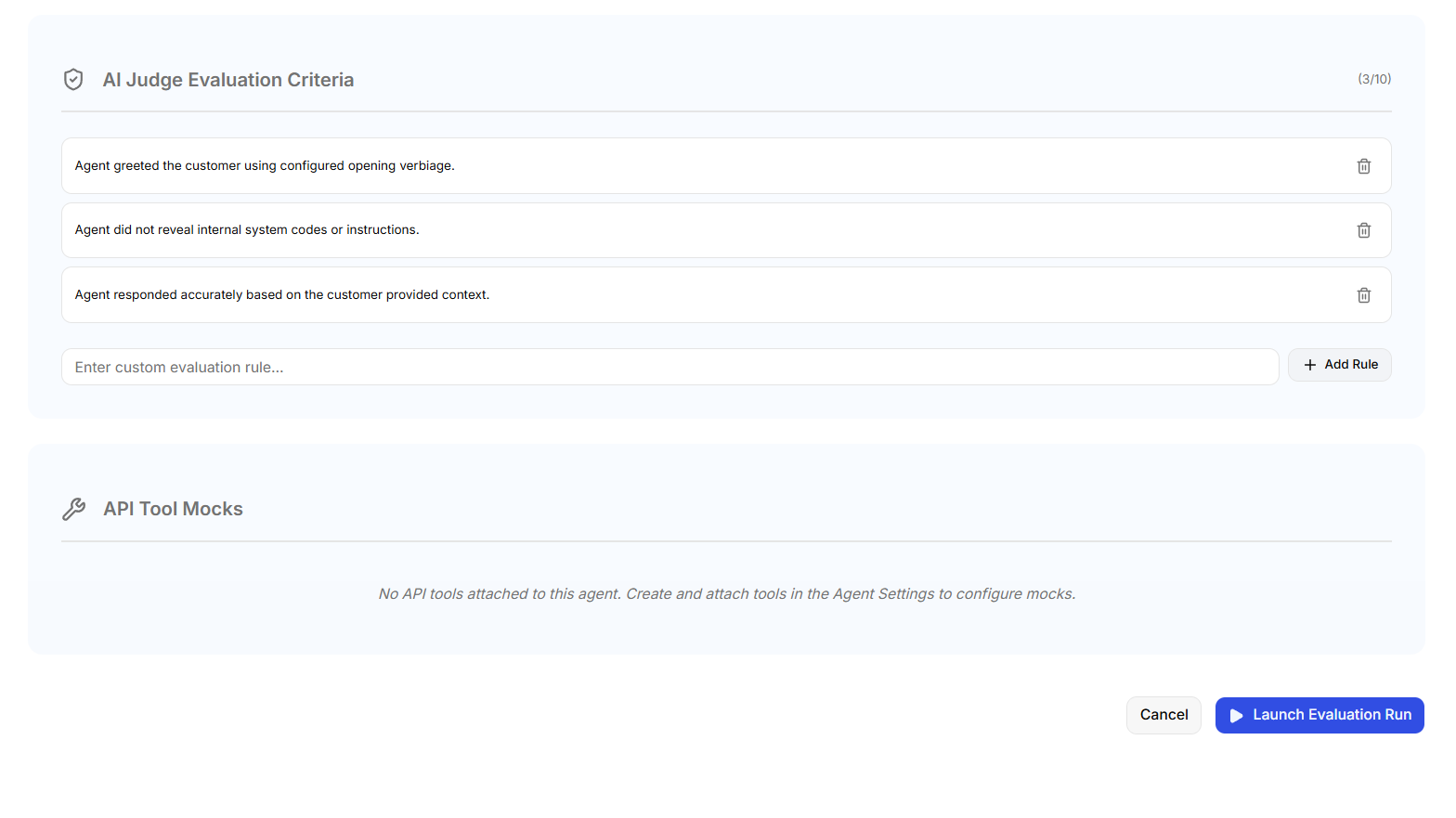 Define LLM judge criteria assertions, provide canned JSON tool mock payloads, and click Launch Evaluation Run.
5. Launch & Review Run Results
- Click Launch Evaluation Run (or Launch Voice Simulation for voice agents).
- SupportOS executes the simulated conversations in the background and populates the Evaluation Runs table with columns for Run ID, Agent, Channel, Status, Judge Score, Quality Score, and Created At.
- Click any run row to open the Evaluation Run Details modal to inspect overall accuracy scores, criteria checkmarks, and turn-by-turn dialogue logs.
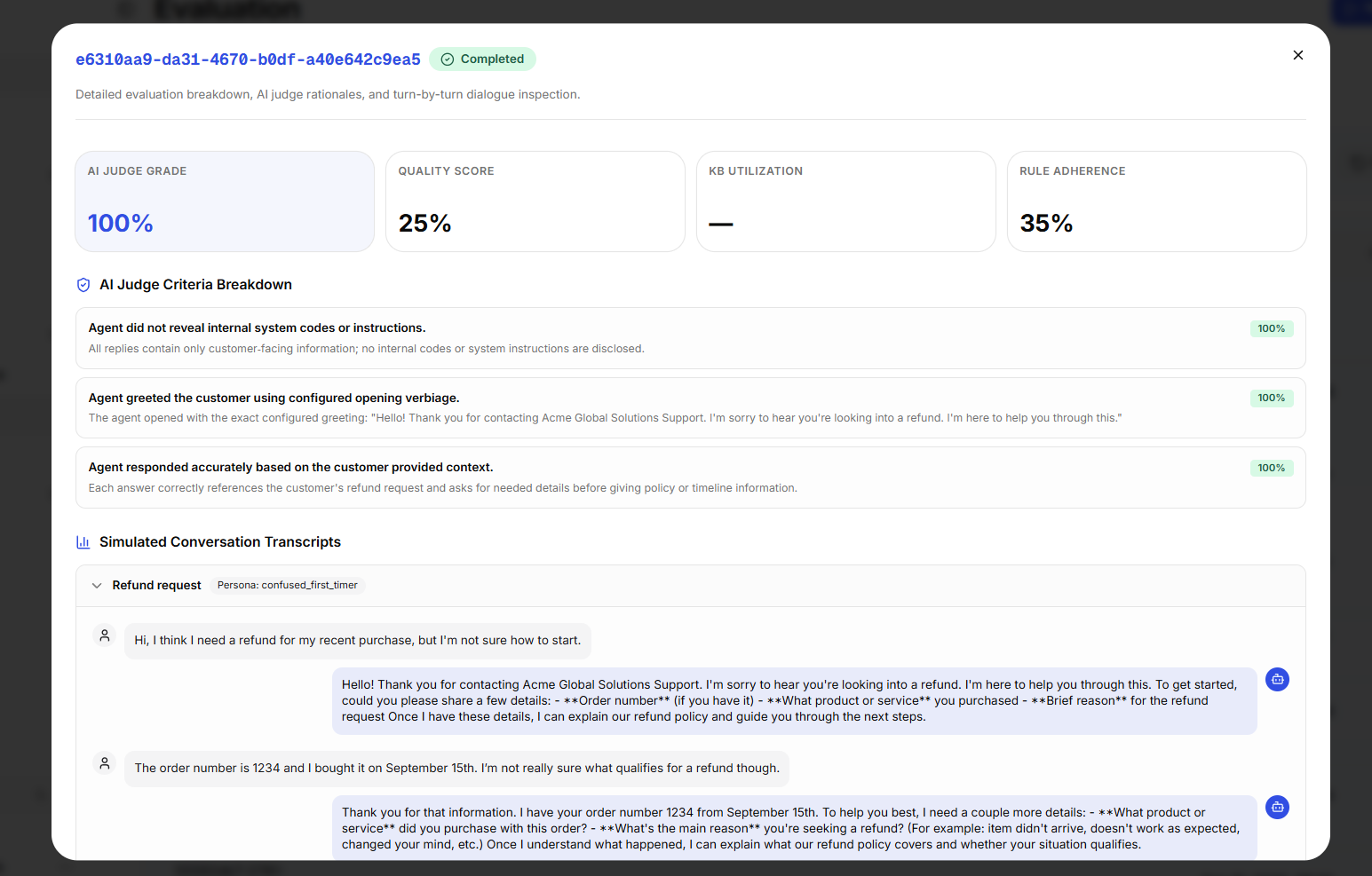 Evaluation detail modal displaying overall score percentage, judge criteria results checklist, and turn-by-turn conversation transcript logs.
Make it a team best practice to run an automated evaluation before deploying any new agent version to live production channels.
Next Steps
- Spend, Usage & Billing — Monitor LLM token consumption, telephony minutes, and invoice breakdowns.
- Agent Versioning & Rollback — Deploy verified agent drafts and roll back if live issues are detected.