Freshchat Integration
In One Sentence
The Freshchat Integration connects your organization's Freshchat account to SupportOS, allowing your AI chat agents to automatically handle incoming messages across WhatsApp, Instagram, Messenger, and web chat with seamless human escalation.
Why It Exists
Modern support organizations manage omnichannel messaging across multiple social platforms and web properties. Rather than configuring separate bots for each platform, SupportOS connects directly to your Freshchat workspace. Your AI agents handle incoming messages across all connected channels and automatically escalate complex issues to your live human support queues.
Omnichannel Message Flow
The diagram below illustrates how incoming messages from WhatsApp, social media, and web chat travel through Freshchat to SupportOS, and how human escalations are handed off:
Core Integration Concepts
| Concept | Description | Configuration Purpose |
|---|---|---|
| Account URL & Token | Your Freshchat domain and secret API token | Authenticates secure bi-directional communication between systems |
| Bot Sender Profile | The Freshchat agent identity the AI posts under | Appears to customers as the support representative or virtual assistant |
| Topic / Channel Routing | Mapping table linking Freshchat Topics to AI Agents | Directs WhatsApp, Sales, or Billing topics to specialized agents |
| Human Escalation Group | The Freshchat inbox group for live agent handoff | Destination queue when the AI triggers an escalation or handoff |
| SupportOS Webhook URL | Dedicated callback endpoint generated by SupportOS | Pasted into Freshchat Admin to stream live messages to SupportOS |
Step-by-Step Setup Guide
1. Enter Credentials & Auto-Load Resources
- In SupportOS, navigate to Integrations in the left sidebar and select Freshchat.
- Enter your Account URL (e.g.,
https://yourcompany.freshchat.com) and your API Token (from Freshchat Settings > API Tokens). - SupportOS automatically validates the credentials and loads your available Freshchat agents, support groups, and channels.
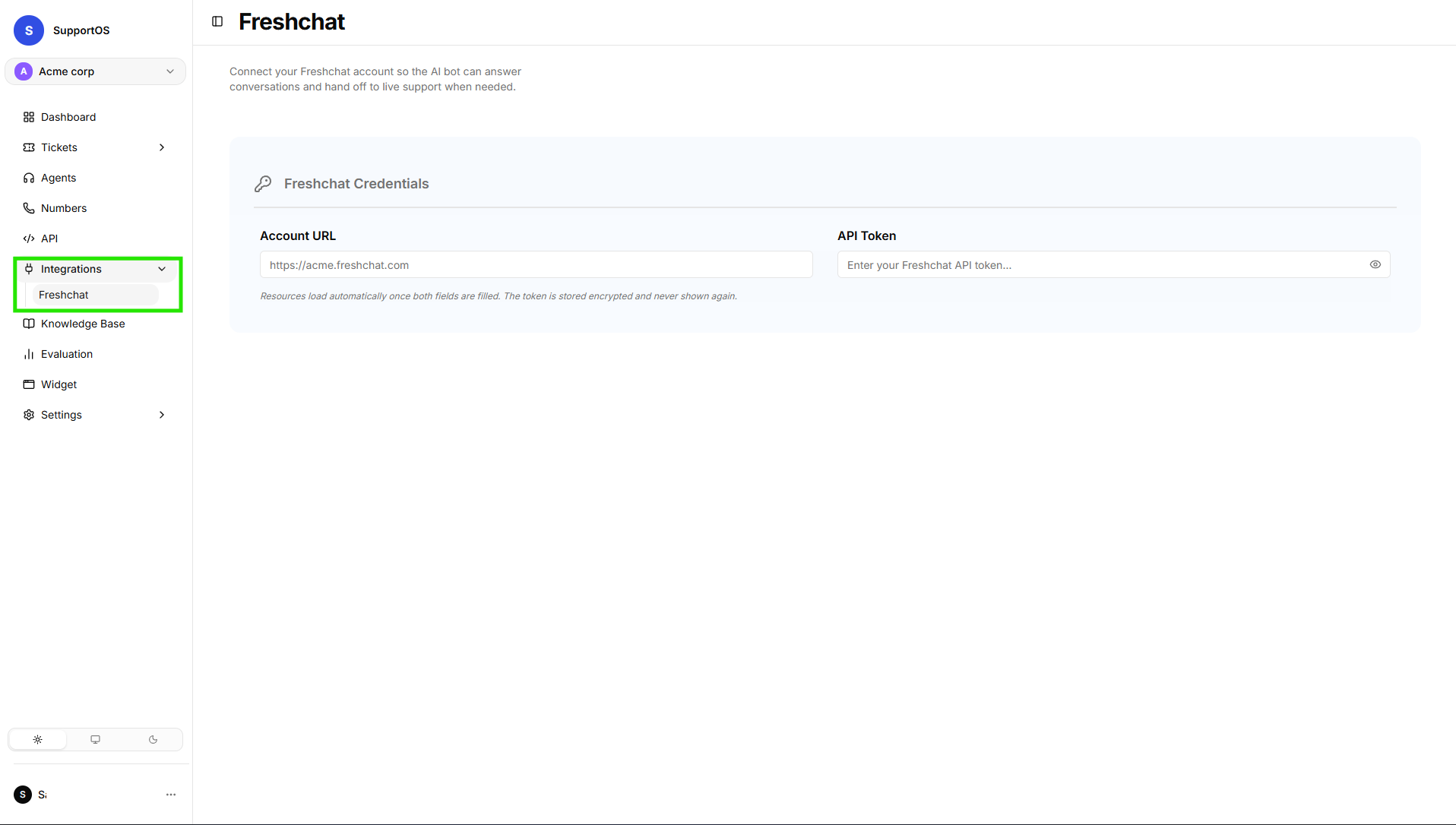 Enter your Freshchat Account URL and API Token to auto-load your agents, groups, and channels.
2. Configure Settings & Connect
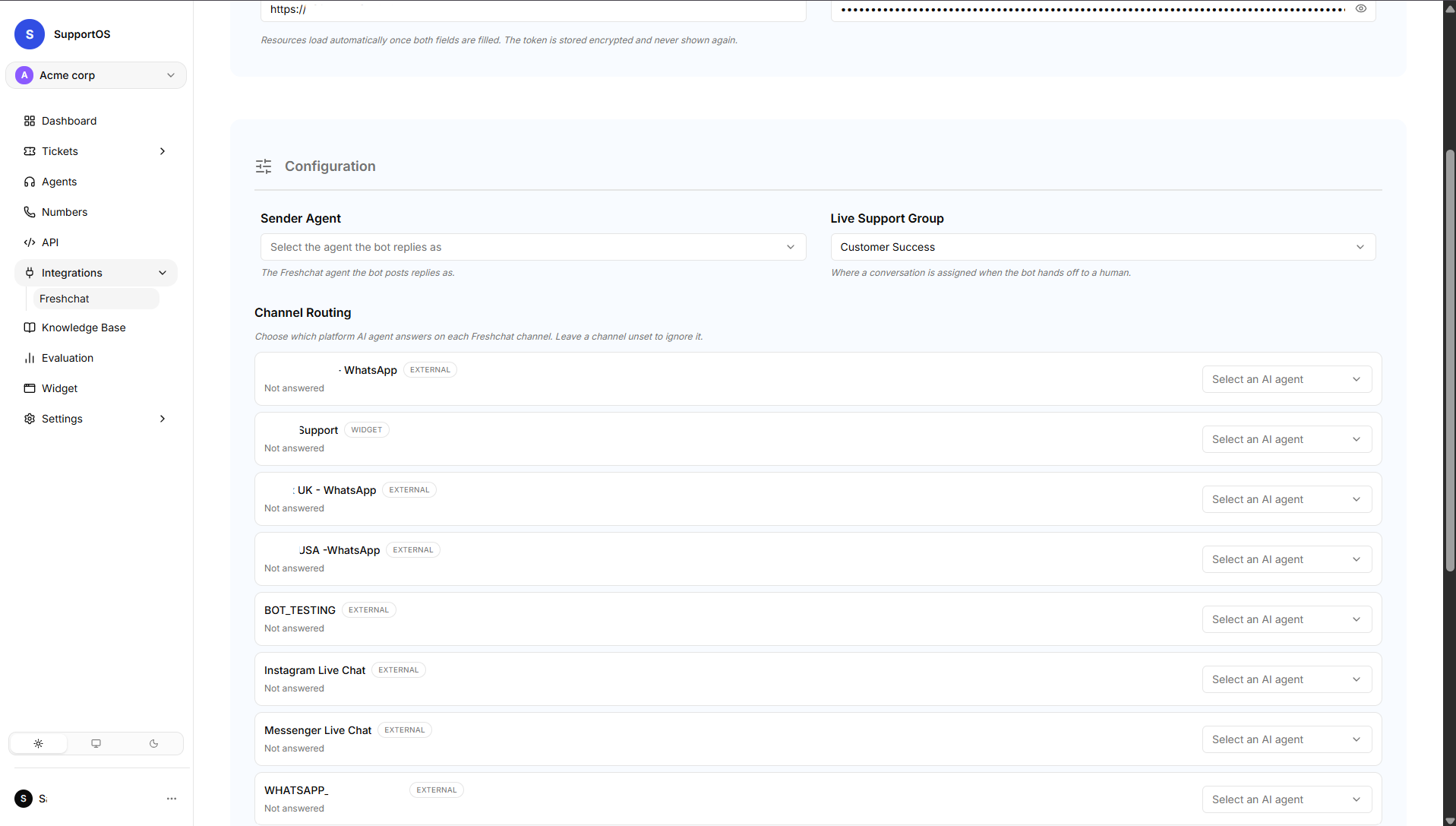
- Sender Agent: Select the Freshchat agent profile the bot replies as.
- Live Support Group: Choose the Freshchat inbox group that receives transferred conversations when an issue requires human attention (or select No handoff group).
- Channel Routing: Map each discovered Freshchat channel (e.g., WhatsApp Support, Website Chat, Instagram) to a specific SupportOS Chat Agent.
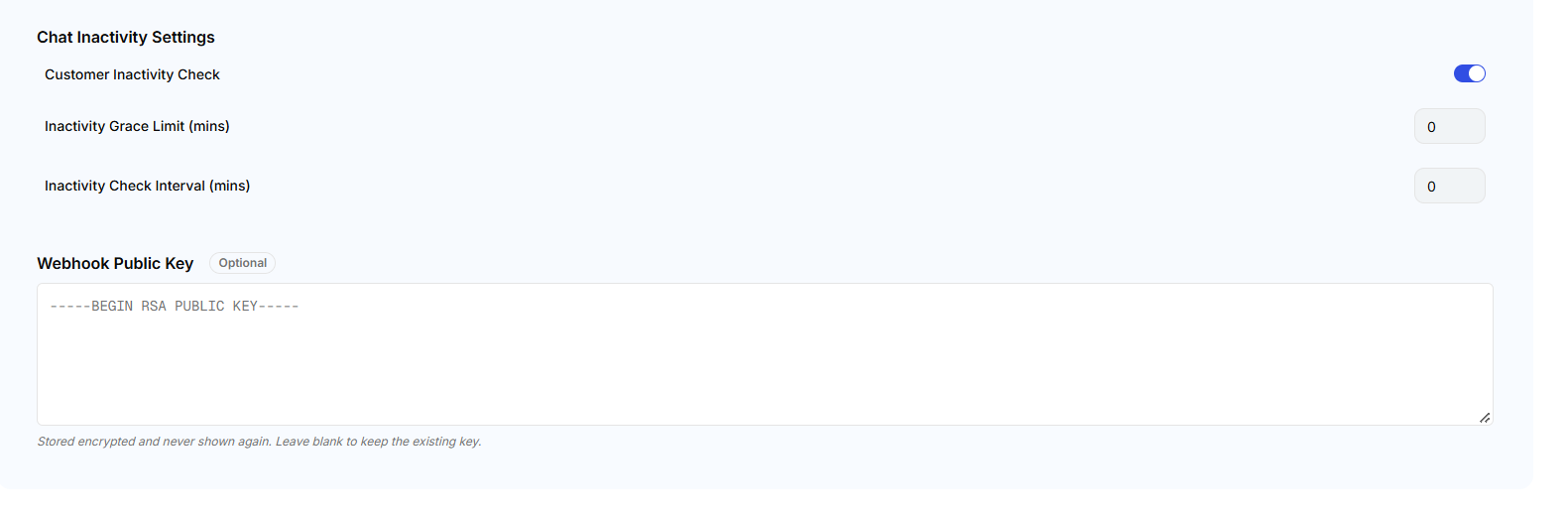
- Chat Inactivity Settings: Optionally enable Customer Inactivity Check, set the Inactivity Grace Limit (mins), and set the Inactivity Check Interval (mins).
- Webhook Public Key: (Optional) Enter your RSA public key for signed webhook verification.
- Click Connect Freshchat to finalize the integration.
 Configure customer inactivity checks, reminder intervals, and optional webhook public key.
 Select the bot sender persona, live support handoff group, and map Freshchat channels to SupportOS agents.
3. Activate the Webhook in Freshchat
- Once connected, SupportOS generates a unique Webhook URL.
- Click Copy next to the Webhook URL.
- Open your Freshchat Admin Console, navigate to Integrations > Webhooks, and paste the URL.
- Enable webhook triggers for User Message Created and save.
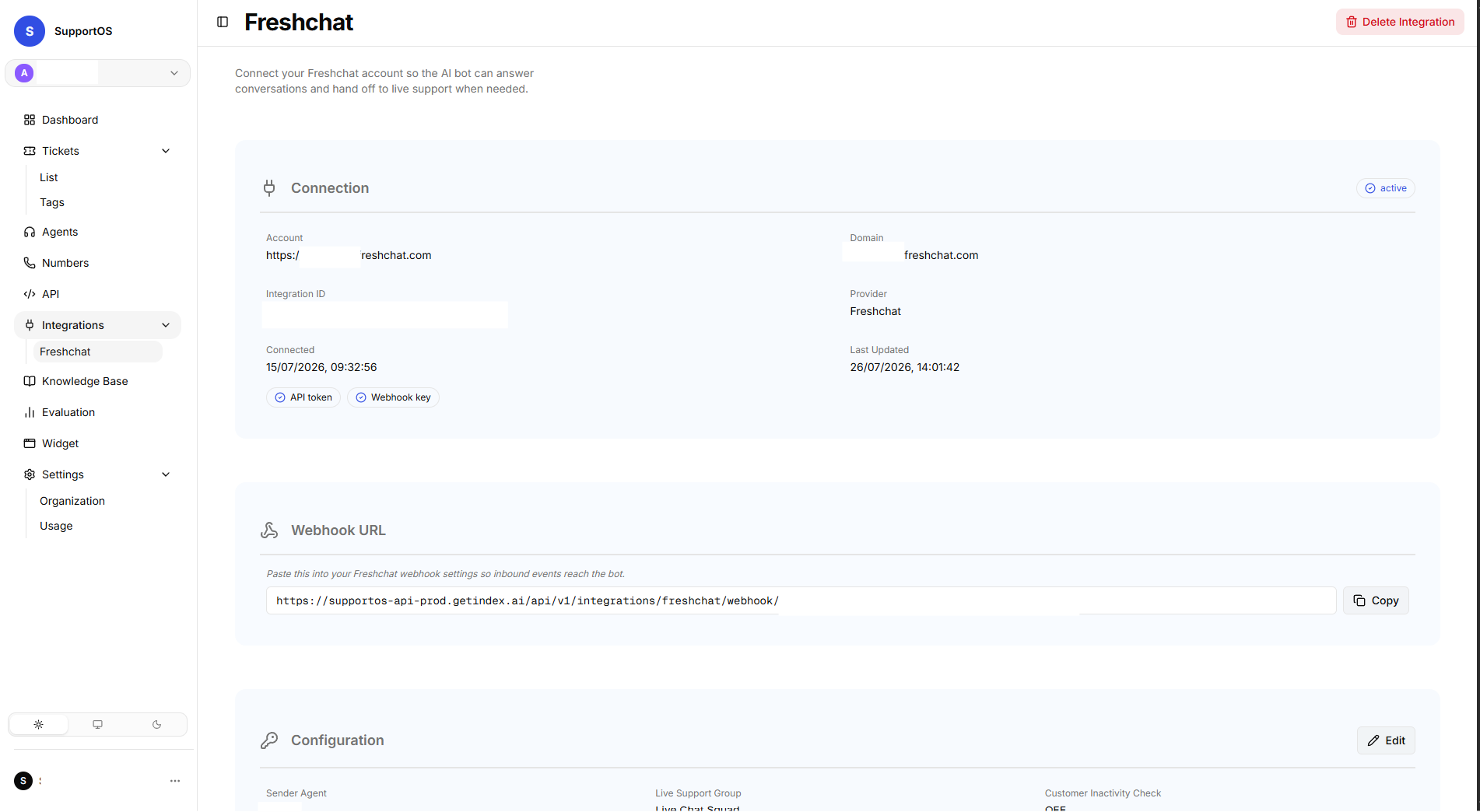 Active connection status card displaying your dedicated Webhook URL and one-click copy button.
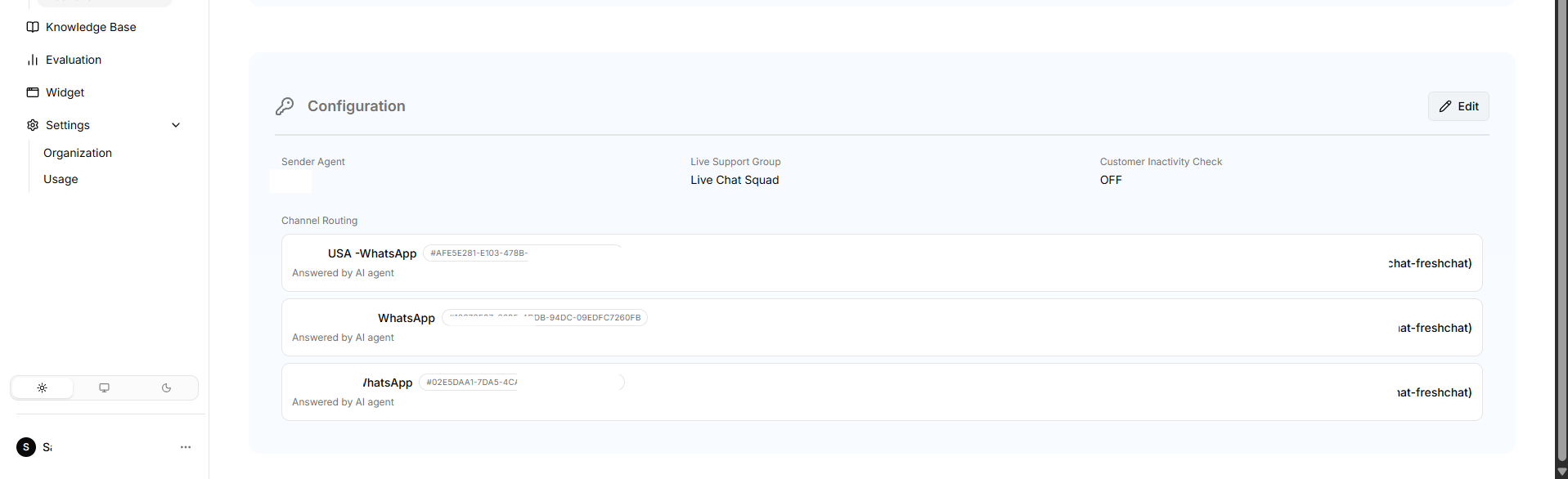 Review active channel routing mappings, handoff groups, and edit configuration settings.
After completing setup, send a test message from your connected WhatsApp number or website chat widget. The SupportOS AI agent mapped to that channel will reply within seconds, and the conversation session will be visible in your SupportOS Tickets inbox.
Human Escalation & Ticket Synchronization
When a customer asks for a live human or the AI reaches a scenario step configured with an escalation trigger:
- Automatic Transfer: SupportOS reassigns the conversation in Freshchat to your designated Live Support Group.
- Bot Silencing: The AI agent automatically mutes itself for the remainder of the session so it does not interfere with the human agent.
- Ticket Creation: SupportOS logs a ticket in your Tickets inbox with full conversation transcripts, customer metadata, and automated tag classifications.
Next Steps
- Widgets — Deploy embeddable, customizable web chat widgets on your own web applications.
- Tickets & Recordings — Monitor conversation sessions, agent summaries, and human escalation tickets.