Tickets & Recordings
In One Sentence
The Tickets & Recordings module is your centralized operations hub where every customer interaction across chat and voice is automatically converted into an auditable ticket with AI-generated summaries, sentiment scores, turn-by-turn transcripts, and secure audio playback.
Why It Exists
Real-time conversations require long-term accountability. The SupportOS post-processing pipeline automatically turns concluded chats and phone calls into structured, searchable tickets (e.g., TICK-84K9P). This gives support managers, QA teams, and live agents complete visibility into AI resolution rates, customer sentiment, and human handoff context without requiring manual note-taking.
The Ticket Processing Pipeline
When a customer interaction concludes or escalates to a live agent, SupportOS runs an automated post-processing pipeline that compiles the ticket, evaluates sentiment, and secures the audio recording:
Support Tickets Inbox
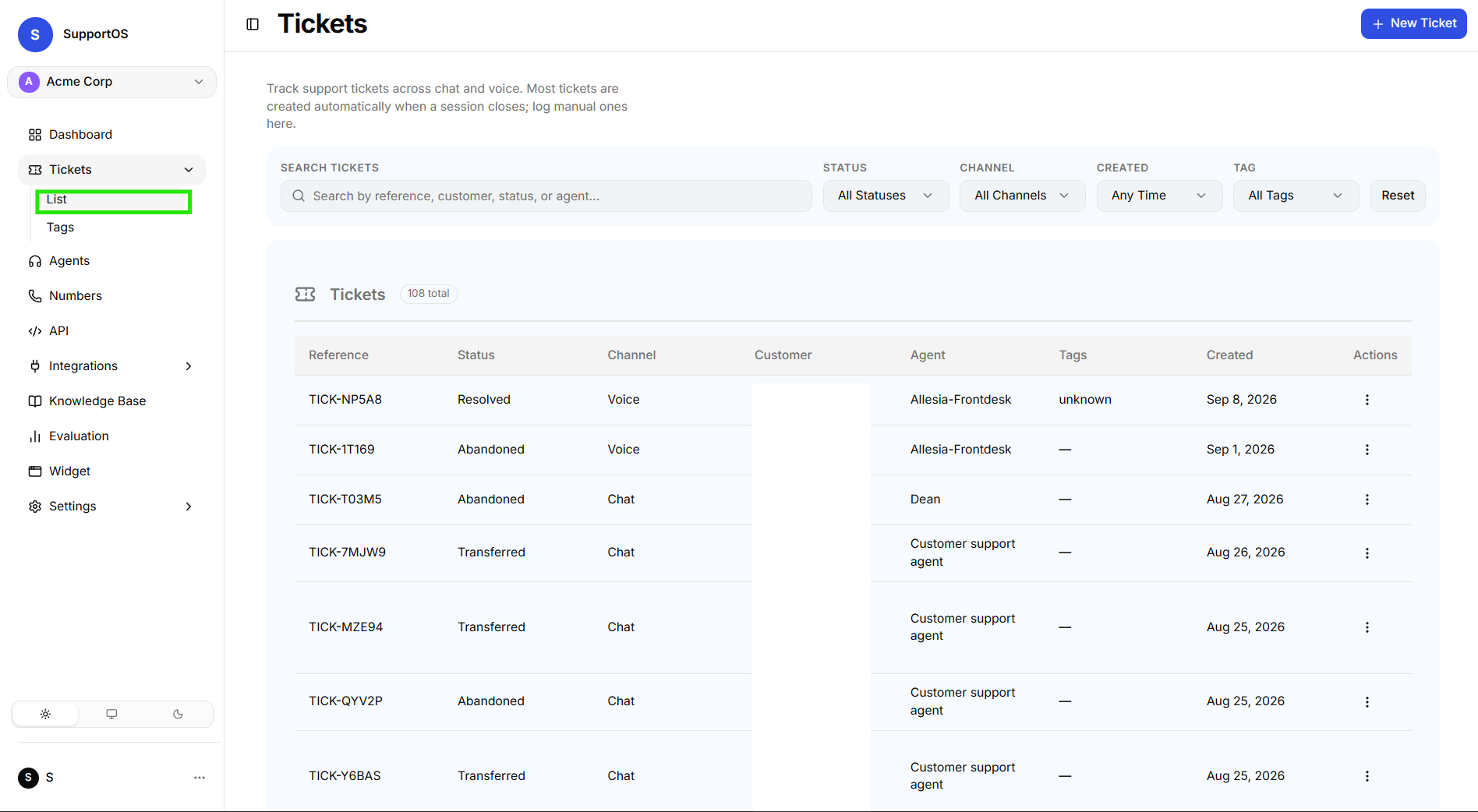 Tickets inbox table displaying ticket references, channel labels, resolution status, sentiment, and action menus.
Anatomy of a Ticket
| Ticket Attribute | Description | Values / Examples |
|---|---|---|
| Reference ID | Human-readable tracking number | TICK-49A1B |
| Channel Type | The medium over which the conversation occurred | Voice Call or Chat Session |
| Resolution Status | Final state of the conversation | Resolved, Transferred, Open, Abandoned, Failed |
| Sentiment | AI-assessed customer emotional trajectory | Positive, Neutral, Negative |
| Tags | Topic and classification labels assigned to the issue | billing-refund, shipping-delay, tier-1-escalation |
| AI Summary | 2-3 sentence overview of issue and resolution | "Customer inquired about refund status on order #123. Agent verified tracking and shared ETA." |
Conversations conducted within the In-App Simulator are strictly test sessions and do not generate production tickets or affect your organization's customer analytics.
Reviewing Ticket Details & Transcripts
Clicking any ticket in the inbox opens the comprehensive Ticket Detail view:
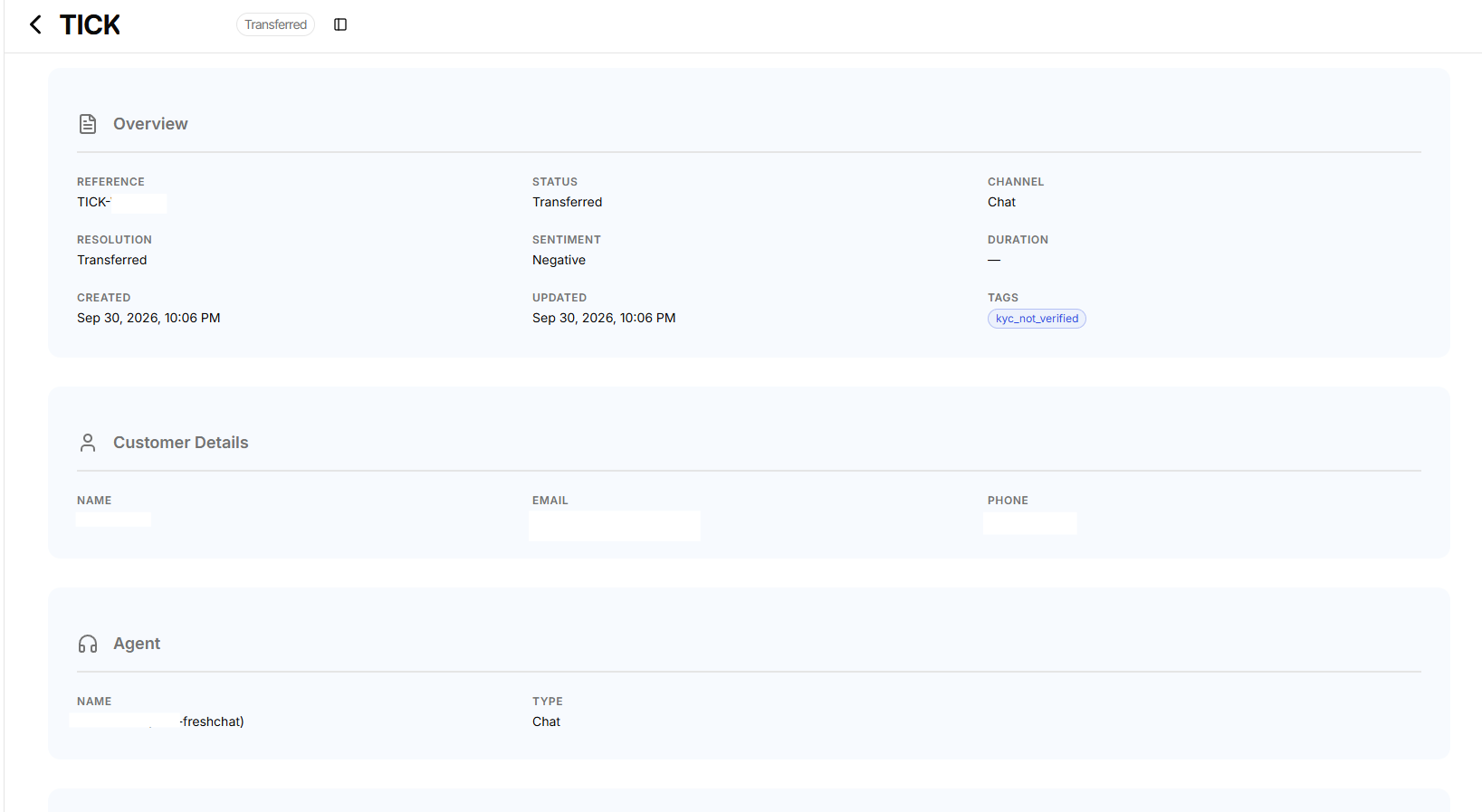 Ticket detail view (Part 1): Overview metadata card, customer profile details, and assigned AI agent information.
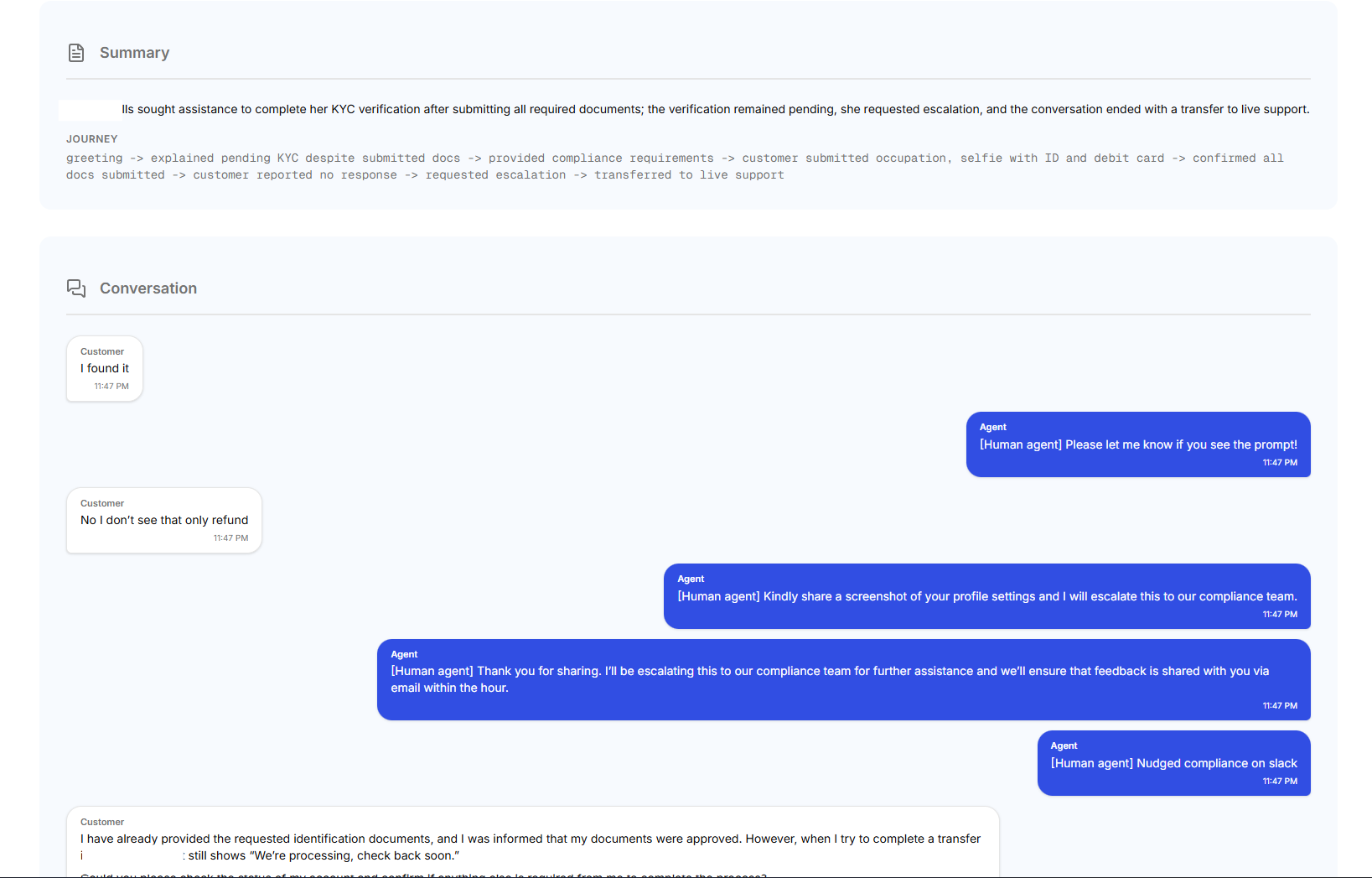 Ticket detail view (Part 2): AI executive summary, intent journey timeline, and full turn-by-turn conversation transcript.
1. AI Summary & Sentiment Analysis
The top section of the ticket provides an instant briefing:
- Executive Summary: What the customer needed and how the AI agent responded.
- Sentiment Meter: Highlights customer satisfaction throughout the call or chat.
- Resolution Classification: Confirms whether the customer's request was successfully resolved by the AI or required human transfer.
2. Turn-by-Turn Conversation Transcript
The transcript viewer provides an exact, chronological record of the dialogue:
- Timestamps for every message or utterance.
- Indicators showing which Knowledge Base documents or API Tools were queried during each turn.
- Visual distinction between customer inputs, AI responses, and human agent takeover messages.
3. Voice Call Audio Playback
For voice agent conversations, the ticket includes a dedicated audio player:
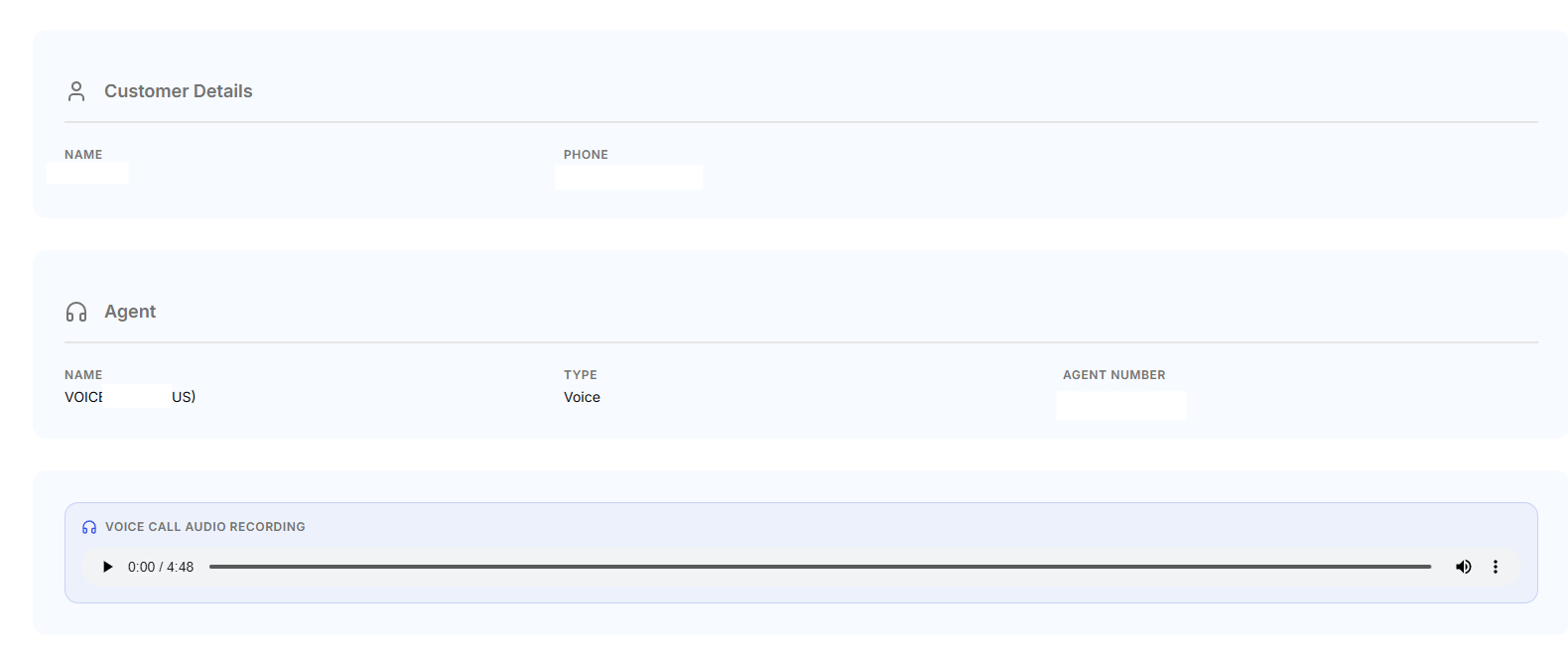 Audio playback panel featuring an interactive waveform scrubber, playback speed controls, and timestamp seeking.
- Interactive Waveform: Visual representation of speaker turns between customer and AI agent.
- Synchronized Transcripts: Click any point in the waveform to jump directly to that moment in the transcript.
- Secure Streaming: All audio recordings are streamed over encrypted channels to ensure compliance with enterprise privacy standards.
Support managers can filter the Tickets Inbox by Sentiment: Negative or Status: Transferred to quickly identify conversations that need manager coaching or scenario optimization.
Next Steps
- Tags — Create custom classification tags, manage organization tag catalogs, and use bulk import workflows.
- Agent Evaluation & Benchmarks — Run automated synthetic test suites against your agents to measure quality, latency, and accuracy.